What Is the Best Way to Digitize Slides?
The best way to digitize slides is to use a film scanner that fits your slide format and the time you can spend. For a small collection, a standalone scanner is simple; for detailed scans or many 35mm frames, consider a computer-connected model or a scanning service.
On this page (8 sections)
- What is the best way to digitize slides at home?
- Should you scan slides yourself or use a service?
- Which features matter most in a slide scanner?
- Which standalone scanner fits a simple home workflow?
- Which scanner suits detailed 35mm slide batches?
- How do you prepare slides before scanning?
- How should you save and organize digitized slides?
- Which slide-digitizing method should you choose?
The best way to digitize slides is to match the scanning method to your film format, image-quality needs, and collection size. A standalone film scanner suits a straightforward home workflow, while a computer-connected scanner offers a different path for people who want to manage detailed 35mm scans.
Start by checking whether your collection contains mounted slides, film strips, or several formats. Then decide how much time you want to spend scanning each frame.
A service is another option when the collection is large or you would rather not handle the work yourself.
What is the best way to digitize slides at home?
A dedicated film scanner is usually the most direct home option because it is designed for slides and negatives. The right model depends on the formats it supports, whether you want to use a computer, and how many frames you need to scan.
Standalone models can save scans to an SD card and let you preview images on a built-in screen. A computer-connected model may suit you better if you want to manage files on a computer or scan batches of 35mm film.
Before choosing, sort a few slides by mount and film size. Product names can use terms such as 35mm, 126, or 110, so check that the scanner supports the exact formats in your boxes.
Should you scan slides yourself or use a service?
Scan at home when you want control over the process and have time to work through the frames. A scanning service may make more sense for a large archive, particularly if you do not want to load and review slides one at a time.
A home scanner also lets you decide how to name and organize files as you go. That can help when slides need dates, events, or family names attached before you share them.
A service can reduce the time you spend operating equipment, but compare its supported formats and file options first. For a mixed collection, ask whether the service accepts every slide and film type you have.
Which features matter most in a slide scanner?
Format support, batch handling, file transfer, and preview controls are useful details to compare. They affect whether a scanner fits your collection and the way you want to work.
- Film formats: Match the scanner's supported formats to the slides and negatives you own.
- Batch size: Holders that accept several frames can reduce repeated loading.
- Saving files: Check whether scans go to an SD card, a computer, or both.
- Preview and adjustments: A screen and simple controls can help you review images before saving.
- Connection and software: Confirm what you need to power the scanner and move files afterward.
A high resolution number alone does not tell you how a scan will look. The original slide's condition, focus, exposure, and dust also affect the result.
Which standalone scanner fits a simple home workflow?
A standalone scanner can suit you if you want to preview and save scans without using a computer for each frame. These options have different screen sizes, format support, and loading approaches.
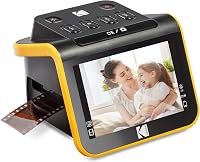
Kodak Slide N Scan Max for quick feeding
The Kodak Slide N Scan Max is a fit for people digitizing a mix of 135, 110, and 126 film who want a tiltable 7-inch screen. Its quick-feeding tray is designed to keep scanning without repositioning each frame.
It saves scans directly to an SD or SDHC card up to 32GB. An SD card is required and is not included, so plan for that before you start.
The scanner also has one-touch image adjustments. Choose it if you value on-device preview and handling several supported film formats; compare another option if your collection is mostly 35mm slides and batch scanning is the priority.
Kodak Scanza for several film types
The Kodak Scanza supports 35mm, 126, 110, Super 8, and 8mm negatives and slides, with a 3.5-inch tilting display. It can save scans to an SD card, which is sold separately.
The Scanza converts Super 8 and 8mm film to still images, not video. Its included brush is intended for cleaning the light box, which can help avoid dust specks in scans.
Choose it if you want a compact screen-based workflow for these specific formats. If you want to scan a large number of mounted 35mm slides in batches, compare the Plustek option below.
Which scanner suits detailed 35mm slide batches?
A computer-connected film scanner may suit you if most of your collection is 35mm and you want to batch several frames. Check the holder sizes and computer requirements before choosing a model.
Plustek OpticFilm 135i for 35mm batches
The Plustek OpticFilm 135i is designed for 35mm negatives and mounted slides, with holders that can scan up to 4 slides or 6 film frames at a time. Its listed resolution is 7200 dpi, and it supports 48-bit input with 24- or 48-bit output.
It also supports half-frame images and panoramic frames up to 226 mm wide, though the panoramic holder is optional. The 2025 version has a 5-element lens, so confirm which version you are considering if that detail matters to you.
Choose this model if you want batch handling for a 35mm collection. For mixed 110, 126, or other formats, a standalone model with the support you need may be a better match.
HP Film and Slide Scanner FS500 for standalone use
The HP Film and Slide Scanner FS500 supports 135, 126, and 110 negatives and positive slides. It has a 5-inch touchscreen for preview and editing, plus a quick-load tray for batch scanning.
The FS500 can digitize without a computer and has a 13MP sensor with 22MP interpolation. Its stated computer requirements are Windows 10 or later and macOS 10.15 or later, which may matter if you plan to connect it to a computer.
Choose it if you want a touchscreen workflow across those formats. If you need to scan Super 8 or 8mm, compare the Scanza's stated format support.
How do you prepare slides before scanning?
Clean loose dust from the slide mount and scanner area before scanning. Keep the film surface protected, and follow the scanner's instructions for handling and cleaning.
Sort the slides by format and mount type, then scan one sample from each group. Review the files at the size you expect to use them before working through the rest of the collection.
For more on film handling, read how to scan negatives at home. If you are also digitizing prints, how to scan old photos to a computer covers a different kind of original.
How should you save and organize digitized slides?
Save a master copy of each scan before making edits, and use clear names that help you find the images later. For example, a folder by year or event can keep scans from one box together.
Use a file format that fits your plans for editing and sharing. Our guide to TIFF or JPEG for scanned photos explains common choices for image files.
Keep a second copy on another drive or storage service. That way, one device failure does not leave you with only the original slides.
Which slide-digitizing method should you choose?
Choose a standalone scanner if you want an on-device workflow and your slides match its supported formats. The Kodak Slide N Scan Max and HP FS500 offer screen-based controls, while the Scanza supports additional film types such as Super 8 and 8mm stills.
Choose the Plustek OpticFilm 135i if your collection is mainly 35mm and batch scanning matters. For a large collection or a hands-off process, compare a scanning service with the time and equipment needed at home.
If you are choosing a model for 35mm slides, see our guide to scanners for 35mm slides and best slide and negative scanners.
Frequently asked questions
What is the best way to digitize 35mm slides?
For a small number of 35mm slides, use a dedicated film scanner with a holder made for mounted slides. Choose a standalone model for a simple workflow, or a computer-connected scanner if you want more control over the files.
For a large collection or preservation work, compare a professional scanning service with the cost and time of scanning at home.
Can I scan slides with a regular flatbed scanner?
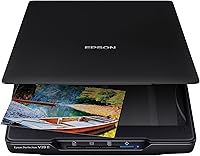
A regular flatbed scanner may not capture transparent slides well unless it has a transparency unit and the right holder. A dedicated film scanner is made for negatives and slides, while a standard document or photo flatbed is mainly for opaque items.
Check the scanner's supported media before buying.
Should I use a scanning service or scan slides at home?
A service can save time when you have many frames or want someone else to handle the workflow. Home scanning gives you control over sorting and file choices, but takes time to load, preview, and save each batch.
Compare service options with your collection size and quality needs.
What resolution should I use for digitized slides?
Choose a resolution based on how you will use the scans and how much detail the originals hold. Higher resolution can create larger files and won't restore detail that is missing or blurred in the slide.
See our guide to what resolution to scan photos for more on choosing a setting.