How Do You Scan Negatives at Home?
To scan negatives at home, use a film scanner or a flatbed scanner with a film holder, then clean the negatives, preview each frame, and save the scans to a computer or memory card. Choose a dedicated film scanner for a steady stream of negatives or a flatbed if you also scan prints.
On this page (7 sections)
- What do you need to scan negatives at home?
- How do you prepare negatives for scanning?
- How do you scan negatives with a scanner?
- What settings should you use for negative scans?
- How should you save and organize the scans?
- What should you do if a negative scan looks wrong?
- How do you choose a home method for scanning negatives?
To scan negatives at home, use a film scanner or a flatbed scanner with a film holder, then clean the film, preview each frame, and save the scans to a computer or memory card. A dedicated film scanner suits a box of negatives, while a film-capable flatbed can also handle prints and documents.
The basic process is simple: identify the film type, load it in the correct holder, preview the image, adjust the scan settings, and save a copy. Your scanner's instructions matter, since loading and saving steps differ by model.
What do you need to scan negatives at home?
You need a film-capable scanner, the correct holder, and a way to save the files. A dedicated film scanner handles supported film formats directly, while some flatbeds use a film holder and a light source in the lid.
Start by checking the film size and type. Common formats include 35mm, 110, and 126 film, but a scanner may support only some of them.
Keep a soft brush or a camera blower nearby for loose dust. You may also want a clean work surface, a computer or memory card, and enough storage for the files.
For an overview of scanner types and what each can handle, see our guide to the best scanner for home use.
Which scanner should you use for negatives?
Choose a dedicated film scanner for supported strips and slides, or a flatbed with a film holder if you want one device for film and prints. A standard flatbed without film support may not capture a useful negative image.
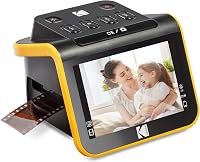
The Kodak Slide N Scan has adapters for 135, 110, and 126 film, plus a holder for 50mm slides. It displays previews on its built-in screen and saves files to an SD card, which is sold separately.
The Magnasonic 24MP All-in-One Film Scanner handles 35mm, 110, 126, and Super 8 film, along with several slide formats. It saves JPEG files to an SD card and has a 5-inch display for viewing images on the device.
For more detail on choosing between dedicated film models, compare our guide to slide and negative scanners.
How do you prepare negatives for scanning?
Handle negatives by the edges and remove loose dust before loading them. Keep the strip flat and use the holder made for its film format.
Wash and dry your hands first, or wear clean gloves made for handling film. Hold the strip over a clean surface so it won't fall onto grit or a hard floor.
Use a soft film brush or a blower to remove loose particles. Don't use household cleaners or rub the film with a dry cloth, since that can scratch it.
Check the holder for dust, then follow the scanner's instructions to place the emulsion side correctly. If you're unsure which way the strip faces, make a preview scan before loading more frames.
How do you scan negatives with a scanner?
Load the negative in its holder, choose the matching film type, and preview one frame before scanning the strip. The scanner may handle color inversion and exposure settings for you, or it may require adjustments in its software.
- Connect the scanner or insert the required memory card.
- Choose the film format and color or black-and-white setting.
- Place the negative in the holder without bending it.
- Preview the frame and check for dust, cropping, and color.
- Adjust the crop and image settings, then scan.
- Save the file with a name you can find later.
The Plustek OpticFilm 8300i Ai is a dedicated 35mm scanner that comes with SilverFast 9 Ai Studio and Plustek Quick Scan Plus software. Its included IT8 target supports color calibration, and the scanner connects by USB.
If you scan a roll, work in small groups and check the first few files before continuing. This can help you catch a reversed strip, incorrect film type, or unwanted crop early.
For 35mm slides as well as negatives, see our guide to scanners for 35mm slides.
Can a flatbed scanner scan negatives?
Yes, when it has a transparency light source and a film holder for the negative size. Place the negative in the holder and use the scanner's film mode or software settings to create a positive image.
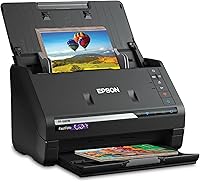
The Epson Perfection V850 Pro is a flatbed photo scanner with a dual-lens system and film holders. It connects to a computer by USB, so it can suit a home setup that includes both film and other photos.
Before starting, confirm that the film holder matches your negative size and that your scanning software supports film. A flatbed can be a flexible choice, but loading and scanning individual frames may take longer than using a dedicated film scanner.
What settings should you use for negative scans?
Choose the film type first, then set the resolution for how you plan to use the image. Higher resolution can preserve more detail for cropping or larger prints, but it also creates larger files and may take longer.
For a quick family-photo scan, start with the scanner's recommended setting and make a test file. Check whether the whole frame is visible and whether the colors look reasonable before scanning a large batch.
Save a high-quality master file if you may edit or print the image later. You can create smaller JPEG copies for sharing while keeping the master untouched.
The best setting depends on your scanner, software, and intended print size. For print scanning, our guide explains what resolution to scan photos.
How should you save and organize the scans?
Save each scan with a clear filename and keep a second copy of important files. Include a date, roll number, or family name if you know it, so you can find the images later.
Keep the original master files in one folder and edited or sharing copies in another. Copy the folder to a separate drive or a trusted backup service, since a single computer can fail.
Avoid overwriting the original scan when you adjust color or crop an image. A fresh copy gives you room to try edits without losing the first capture.
What should you do if a negative scan looks wrong?
Check the film orientation, format setting, and preview crop first. These simple issues can make a scan look blank, too dark, or cut off.
If the image appears as a negative instead of a positive, look for an inversion or film-type setting in the scanner software. If the frame is clipped, reposition the strip in its holder and preview it again.
Dust spots may come from the film or the holder, so clean both gently and rescan. If colors look unusual, check that the software is set for the right film type before changing many controls.
How do you choose a home method for scanning negatives?
Choose a dedicated film scanner if you mainly scan supported negatives, and a film-capable flatbed if you also want to scan prints. Confirm the film formats, saving method, and software before choosing a device.
The Kodak and Magnasonic models have built-in screens and save to SD cards. The Plustek is a 35mm-focused option with scanning software, while the Epson is a flatbed with film holders.
If your main task is 35mm film, compare the steps in our guide to the best way to digitize slides. Make a test scan first, then pick the method that fits your film format and the way you want to store the files.
Frequently asked questions
Can you scan negatives with a regular flatbed scanner?
Yes, if the flatbed includes a film holder and a light source that shines through the negatives. A regular flatbed without those features can scan the strip as a dark image, but it won't produce a useful negative scan.
Check the scanner's film support before you start.
What resolution should you use to scan 35mm negatives?
For sharing and ordinary prints, start with a moderate resolution setting and make a test scan before processing a whole roll. Use a higher setting when you expect to crop or make larger prints, since that creates larger files and takes longer.
Keep an unedited copy of important scans.
Should you clean negatives before scanning?
Yes, remove loose dust before scanning because it can show up in the digital image. Use a clean, soft film brush or a blower made for camera gear, and handle the strip by its edges.
Avoid household cleaners, rubbing, or wiping a dirty negative with a dry cloth.
What file format should you save negative scans in?
Save a high-quality master copy in a format your scanner supports, then make smaller JPEG copies for sharing. TIFF is a common choice for keeping an uncompressed master, while JPEG files take less space and are easy to send.
Keep a second copy of important scans in another location.