9 Best Slide and Negative Scanners for Old Film (October 2026)
The best slide and negative scanners for old film include the Epson Perfection V850 Pro for detailed film archiving, the Kodak Slide N Scan for simple standalone scans, and the Kodak Slide N Scan Max for a larger preview screen.
On this page (4 sections)
The Epson Perfection V850 Pro is the best slide and negative scanner here for detailed film archiving, with 6400 dpi scanning, a dual lens system and Digital ICE. If you want to scan without a computer, the Kodak Slide N Scan offers a simpler screen and SD card workflow.
The right choice depends on your film formats and how much control you want. A dedicated scanner can suit careful 35mm work, while a standalone converter can make it easier to view and save a mixed family collection.
For a focused look at 35mm options, see our guide to the best scanners for 35mm slides. If you already have negatives ready, our guide on how to scan negatives at home covers the basic process.
Our picks at a glance
-
1

-
2
-
3

- 4
 Best for 35mm color controlCheck it
 - 5
 Best for mixed film formatsCheck it
 - 6
 Check it
Magnasonic 24MP All-in-One Film Scanner
Best for quick viewing and saving - 7
 Check it
HP Film and Slide Scanner FS500
Best for touchscreen operation - 8
 Best for film plus small printsCheck it
 - 9
 Best for direct TV viewingCheck it
Which slide and negative scanners fit each workflow?
The best slide and negative scanner depends on whether you value fine control, quick standalone scanning or support for mixed film formats. These picks are ordered by how well their features fit the needs of someone digitizing old film.
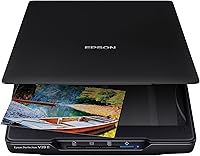
Epson Perfection V850 Pro: Best for detailed film archiving
- 6400 dpi scanning
- Dual lens system
- Digital ICE
- Film holders included
A high-detail option for archiving film and photos. Its dual lens system, Digital ICE and included film holders suit buyers prepared for a computer-connected scanning workflow.
Pros
- 6400 dpi scanning
- Dual lens system
- Digital ICE
Cons
- 20.9 lb weight
- Requires a computer
The Epson Perfection V850 Pro is the strongest fit for an archive where detail matters more than speed or simplicity. It scans at 6400 dpi and has a dual lens system that selects between lenses for scanning.
Its Digital ICE feature is part of the film and photo archiving workflow. Film holders are included, and the scanner connects to a computer over USB.
This is a more involved choice than a compact converter with a built-in display and card slot. It weighs 20.9 lb, so plan a stable place for it if you expect to scan a large collection over time.
Choose the V850 Pro when you want detailed scans and are comfortable managing the work on a computer. If you mainly want quick previews and direct card storage, one of the standalone Kodak or Magnasonic models may be easier to use.
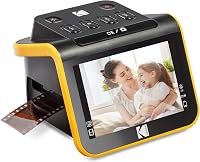
Kodak Slide N Scan: Best for simple standalone scans
- 5 in LCD screen
- 135, 110 and 126 film adapters
- Saves to SD or SDHC card
- Quick-feeding tray
A straightforward choice for viewing and converting several common film formats without making the computer the center of the process. It needs an SD card, which is sold separately.
Pros
- Preview and edit on the built-in screen
- Includes film adapters
- Connects to a Type-C USB computer
Cons
- SD card required and not included
- Screen is smaller than the Slide N Scan Max
The Kodak Slide N Scan is a straightforward option for scanning common negative and slide formats without a computer-based workflow. Its 5 in LCD screen lets you preview images on the device, and the quick-feeding tray is designed for continuous loading.
It includes a 50 mm slide holder and adapters for 135, 110 and 126 film. You can make simple edits on the device, including color and brightness adjustments, then save scans to an SD or SDHC card.
An SD card is required and sold separately. The scanner can also connect to a Type-C USB computer, which gives you another way to handle the files.
Choose it if you want a simple way to scan family negatives and slides, with a screen for checking each image. For a larger display, the Slide N Scan Max below has a 7 in tilting screen.
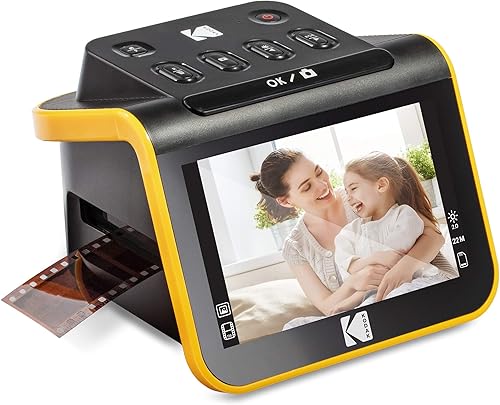
Kodak Slide N Scan Max: Best for a larger preview screen
- 7 in tiltable LCD screen
- 135, 110 and 126 film support
- Quick-feeding tray
- Saves to SD or SDHC card
The larger tilting screen makes previews easier to share and review at the scanner. One-touch editing and direct card storage keep the workflow simple.
Pros
- Largest screen among these picks
- Quick-feeding tray
- One-touch image editing
Cons
- SD card required and not included
- Film support is limited to the listed formats
The Kodak Slide N Scan Max is the screen-first choice in this group. Its 7 in tilting LCD gives you more room to preview and edit images than the 5 in screen on the regular Slide N Scan.
The quick-feeding tray supports continuous loading, and the scanner handles 135, 110 and 126 film. One-touch editing lets you resize, convert and adjust images before saving them to an SD or SDHC card.
The Max is a good match if you expect to review scans at the device or show images to family. It still needs an SD card, which is not included, so have one ready before you plan a scanning session.
Choose it over the smaller Kodak when the screen size matters more than keeping the device compact. For the broader screen and direct card workflow, it is a practical fit for casual family archiving.
Plustek OpticFilm 8300i Ai: Best for 35mm color control
- 7200 dpi resolution
- 35mm slide support
- SilverFast 9 Ai Studio
- Advanced IT8 calibration target
A dedicated 35mm scanner for buyers who want calibration tools and image-processing software. Its bundled IT8 target and SilverFast features offer more control than a basic standalone converter.
Pros
- 7200 dpi resolution
- IT8 calibration target included
- Infrared dust and scratch removal
Cons
- Focused on 35mm film
- Infrared removal can roughly double scan time
The Plustek OpticFilm 8300i Ai is built for a narrower job: scanning 35mm slides and film with more image-control tools. It offers 7200 dpi resolution, SilverFast 9 Ai Studio and a calibration target for color work.
Its software includes infrared dust and scratch removal, along with tools for image processing and color calibration. Plustek says the newer chip increases scan speed by 38% compared with the prior model, though high resolution and infrared removal can still add time.
This model connects by USB and supports Windows 7, 8, 10 and 11, along with Mac OS. It is a more specialized option than the standalone converters, so it makes most sense if your collection is mainly 35mm and you want to work with its software.
Choose the Plustek for controlled 35mm scanning and color adjustments. If your film archive includes several formats, a Kodak model may be more flexible.
Kodak Scanza: Best for mixed film formats
- 35mm, 126, 110, Super 8 and 8mm support
- 3.5 in tilting LCD
- Multiple inserts and adapters
- Saves JPEG files to SD card
A flexible fit for a family archive that includes several film sizes. It converts Super 8 and 8mm to still images, not video.
Pros
- Supports several film formats
- Includes multiple adapters and cables
- Adjustable screen brightness
Cons
- Does not scan printed photos
- Super 8 converts to still images
Kodak Scanza is the broad-format option for families with more than just 35mm film. It supports 35mm, 126, 110, Super 8 and 8mm negatives and slides, with multiple inserts and adapters in the box.
The 3.5 in LCD screen tilts and has adjustable brightness, which helps when reviewing a batch at the device. Scanza saves JPEG files to an SD card and includes a USB power cable, HDMI cable, AC adapter and video cable.
Super 8 and 8mm convert to still images, not video. Scanza also does not scan printed photos, so it is a film-only option.
Choose it when your archive includes several film sizes and you want a device that can switch among them. If you want a bigger display, the Magnasonic and Kodak Slide N Scan models have larger screens.
Magnasonic 24MP All-in-One Film Scanner: Best for quick viewing and saving
- 24MP JPEG files
- 5 in LCD screen
- SD card support up to 128 GB
- Direct brightness and color adjustments
This standalone converter combines a large preview screen with direct adjustments for brightness and RGB color. It suits buyers who want to save scans to a card without installing computer software.
Pros
- Computer not required for scanning
- Adjustments available on the screen
- HDMI output for a TV or monitor
Cons
- SD card is not included
- HDMI cable is not included
The Magnasonic 24MP All-in-One Film Scanner suits a standalone workflow with a larger screen and direct image adjustments. Its 5 in LCD can show film, slides and saved scans, and HDMI output lets you connect to a TV or monitor.
It supports 35mm, 110, 126 and Super 8 film, plus 135, 126 and 110 slides. You can adjust brightness and RGB color on the scanner itself, then save to an SD card that supports up to 128 GB.
A computer is not required for scanning, though you can transfer images by USB. The SD card and HDMI cable are sold separately.
Choose Magnasonic if you want a large screen and direct controls without installing software. It is also a good fit if viewing scans on a TV is part of how you plan to share them.
HP Film and Slide Scanner FS500: Best for touchscreen operation
- 5 in touchscreen
- 135, 126 and 110 film support
- Standalone scanning
- Quick-load tray
A standalone option for mixed 135, 126 and 110 archives, with preview and image adjustments on its touchscreen. The quick-load tray can help move through a batch.
Pros
- Computer not required
- Touchscreen preview and editing
- Quick-load tray
Cons
- Super 8 support is not specified
- HDMI output is not specified
The HP Film and Slide Scanner FS500 gives you touchscreen controls for a standalone scanning session. Its 5 in touchscreen lets you preview and edit scans on the device, and the quick-load tray can help when you have a batch to work through.
It handles 135, 126 and 110 negatives and positive slides. The sensor is 13MP, with 22MP interpolation, and the scanner can digitize film without a computer.
The listed supported formats do not include Super 8, so check that point against your archive before choosing it. The available connection information names USB, with no HDMI output specified.
Choose HP if you want touchscreen operation and support for the three common formats it names. If you need a stated output connection for a TV, consider a model that explicitly includes HDMI.
ClearClick QuickConvert 2.0: Best for film plus small prints
- Scans film and photos up to 4 x 6 in
- 5 in preview LCD
- Rechargeable battery
- Saves JPEG files to SD card
Unlike the film-only options, it can also scan small prints up to 4 x 6 in. Its one-at-a-time design works better for a varied small batch than a large archive.
Pros
- Handles film and small prints
- Rechargeable battery
- No computer or drivers required
Cons
- No autofeeder
- Does not support 5 x 7 in photos
ClearClick QuickConvert 2.0 stands out because it can scan small printed photos as well as film. It supports 4 x 6 in photos or smaller, 35mm slides, and 35mm, 110 and 126 negatives.
The built-in 5 in LCD gives you an instant preview, while the rechargeable battery supports cord-free scanning. It saves JPEG files to an SD card and does not need a computer or drivers.
The scanner processes one item at a time and does not support 5 x 7 in photos. That makes it better for a small mixed batch than a large archive of prints or film.
Choose it if you want one device for film and smaller prints. For a film-only collection, the Kodak or Magnasonic models offer more room to compare supported formats.
PORTTA 22MP Film Scanner: Best for direct TV viewing
- 135, 126 and 110 film support
- 5 in LCD screen
- SD card support up to 128 GB
- HDMI output
A standalone choice with direct card storage, image adjustments and HDMI output for a TV. It also supports Super 8 as still images.
Pros
- HDMI output
- Large LCD preview
- Adjust brightness, color and orientation
Cons
- SD card is not included
- Super 8 is scanned as photos
The PORTTA 22MP Film Scanner offers a standalone workflow with a 5 in LCD screen and HDMI output. It can save images to an SD card and adjust brightness, color and orientation before saving.
It supports 135, 126 and 110 film, as well as Super 8 as still images. Standard output is 16MP, with an enhanced 22MP option.
The SD card is sold separately. Its HDMI connection makes it a sensible choice if you want to view scans on a TV, but the listed film support is narrower than Scanza's.
Choose PORTTA if direct TV viewing matters and your archive fits the supported formats. For larger-format variety, Kodak Scanza includes support for 8mm as well as Super 8.
How should you choose a scanner for old film?
Start with the film formats you own, then decide whether you want a standalone device or a computer-connected scanner. A scanner that misses one important format can leave part of your archive untouched.
Check the sleeves and mounts before buying. If you have 35mm, 110 and 126 film, a model that includes those adapters may be easier than buying around each format separately.
Next, think about how you will review and store the scans. Standalone models save to SD cards and provide a built-in screen, while dedicated scanners such as the Plustek and Epson connect to a computer for a more controlled workflow.
If image detail is your priority, compare the stated resolution and available correction tools. Resolution alone does not tell you how a scan will look, so also consider whether you need color controls, calibration features or infrared dust and scratch removal.
Our guide to what resolution to scan photos at explains how resolution affects saved images and later sharing. For a broader look at scan types, start with the best scanner for home use guide.
What should you know before scanning slides and negatives?
Clean film and the scanner's film path before you begin, since dust can show up clearly in a scan. Use the included cleaning brush where the device provides one, and handle negatives by their edges to avoid adding fingerprints.
A standalone scanner can make each frame quick to preview, but you still need to check alignment and orientation. Take a few test scans before working through a large batch so you can settle on the settings and file routine you want.
Save the original scans before making edits. Keep a copy on your computer or another storage device after transferring files from the SD card, so one card is not the only home for your digitized archive.
For a step-by-step workflow, see how to scan negatives at home. If you are deciding between film and print scanning, our guide to the best way to digitize slides can help you plan the process.
Which slide and negative scanner should you choose?
Choose the Epson Perfection V850 Pro if detailed archiving and computer-based control matter most. Pick the Kodak Slide N Scan for a simple standalone workflow, or the Slide N Scan Max if you want a larger preview screen.
For 35mm work with calibration tools, the Plustek OpticFilm 8300i Ai is the specialist choice. If your collection mixes film formats, compare the adapters on Kodak Scanza, Magnasonic and HP before deciding.
The best slide and negative scanner is the one that supports your film and fits the way you want to work. Check your formats first, then choose between quick standalone scanning and more involved computer-based control.
Our top 3 picks at a glance
-
1
-
2
-
3
Frequently asked questions
What is the best slide and negative scanner for most people?
The Kodak Slide N Scan is a practical choice if you want to preview and edit film on a built-in screen, then save scans to an SD card. For more detailed film archiving, the Epson Perfection V850 Pro offers 6400 dpi scanning, a dual lens system and Digital ICE.
Choose based on the detail you need and whether you want a standalone or computer-connected workflow.
Can a film scanner scan both slides and negatives?
Yes, several scanners here handle both slides and negatives. Check the supported formats before you buy, since options vary: the Plustek OpticFilm 8300i Ai is focused on 35mm, while Kodak Scanza also supports formats such as 110, 126, Super 8 and 8mm.
Super 8 scanners may create still images rather than video.
Do standalone film scanners need a computer?
No, models such as the Kodak Slide N Scan and Magnasonic can save images directly to an SD card without a computer. You still need a card, and some models require you to buy it separately.
Dedicated scanners such as the Epson Perfection V850 Pro use a computer-connected workflow.
Should I choose a dedicated 35mm scanner or a film converter?
Choose a dedicated 35mm scanner if your archive is mostly 35mm and you want added software or calibration tools. A standalone converter is easier when you want to preview, adjust and save scans at the device.
For mixed formats, compare the adapters and film sizes each model supports.