How Do You Scan Old Photos to a Computer?
Clean the scanner glass, place each photo face down, choose a resolution, and save the scan to a clearly named folder. A flatbed scanner is a careful choice for loose or fragile prints.
On this page (7 sections)
To scan old photos to a computer, clean the scanner glass, place each print face down, choose a resolution, and save the scan in a clearly named folder. A flatbed scanner is a careful option for loose or fragile prints because you can place them on the glass one at a time.
Before starting, decide how you want to use the files. A scan for viewing on a screen may need less detail than one you hope to enlarge, print, or crop.
What do you need to scan old photos to a computer?
You need a scanner connected to a computer, scanning software, and enough storage for the files. A flatbed scanner suits loose photos, while a dedicated photo scanner may help when you have a large stack of prints.
A phone camera can make a quick copy, but glare, shadows, and perspective can affect the result. A scanner keeps the print flat and can make it easier to create consistent files.
If you don't have a scanner, start with our guide to the best scanner for home use to compare scanner types. For prints kept in albums or for older film, the right tool can differ.
How do you prepare photos and the scanner?
Make sure the scanner glass and photo are free of loose dust, then handle the print by its edges. Don't rub a fragile or peeling photo; see how to clean old photos before scanning for safer handling guidance.
- Wash and dry your hands.
- Clear the scanner bed and check the glass for dust or smudges.
- Place one photo face down, aligned with the scanner's corner guide.
- Close the lid gently, if the print lies flat without pressure.
- Open the scanner software on your computer.
Avoid forcing a curled photo flat under the lid. If it won't lie safely on the glass, consider asking a photo service about handling it.
What settings should you choose?
Start with color mode for color prints and 300 dpi for ordinary copies; use more detail if you plan to enlarge or crop. The right resolution depends on the print and what you want to do with the scan.
Higher resolution can preserve more detail, but it also creates larger files. Read what resolution to scan photos at for guidance on matching scan settings to how you'll use the image.
Choose JPEG for smaller files that are easy to share, or TIFF if you want a large working copy. Our guide to [TIFF vs.
JPEG photo scanning](/tiff-vs-jpeg-photo-scanning/) explains the tradeoffs.
How do you preview and crop a photo scan?
Preview the scan before saving, then crop to the print's edges. Check that the photo is straight and that no part of the image is cut off.
If the software offers automatic dust or color correction, review the result before accepting it. Keep an unedited scan if you may want to adjust the image later.
How do you scan and save each photo?
Scan one photo, check the saved file, and use a filename that helps you recognize it later. A consistent naming pattern makes a family collection easier to sort and back up.
- Select the photo area in the preview, if needed.
- Choose your color, resolution, and file format.
- Start the scan and wait for it to finish.
- Open the saved file to check focus, color, and crop.
- Rename it with a date or subject, such as
1984-family-picnic-01.
Save files in a folder with a clear name, such as Family Photos Scanned. Keep a separate untouched copy before editing or resizing scans.
If you want to scan several prints in one pass, follow our guide to scanning multiple photos at once. Leave space between prints and check the software's crop for each saved image.
Which scanner can help with old photo prints?
A flatbed scanner gives you a glass surface for placing prints individually, while a feed-through photo scanner can suit a larger pile of loose photos. Choose based on the condition and number of prints you need to digitize.
The Canon CanoScan LiDE 400 has 4800 x 4800 dpi resolution, USB connection, and image enhancements that include color restore and dust removal.
It connects by USB and has no wireless connection. That may suit a computer-based setup with a nearby cable, but it won't work as a wireless scanner.
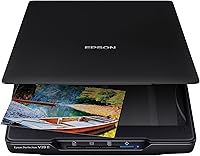
The Epson Perfection V39 II is a flatbed with 4800 dpi optical resolution, one-touch buttons, and Easy Photo Fix for restoring color to faded photos.
Its high-rise, removable lid can help when scanning bulky items such as books and photo albums. Epson ScanSmart software can also stitch oversized images and send scans to cloud storage services.
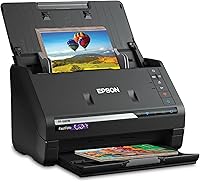
The Plustek ePhoto Z300 accepts photo sizes from 3 x 5 to 8 x 10 in and scans a 4 x 6 in photo in 2 seconds at 300 dpi, according to Plustek.
This scanner feeds photos one at a time, so it may suit a large group of prints that are in good enough condition to feed safely. For very fragile, sticky, or curled photos, use a flatbed or ask a photo service about options.
How can you keep scans organized and backed up?
Save scans in folders that match a family, event, or year, then keep a second copy somewhere separate. A backup protects your work if a computer is lost or stops working.
Use one naming style throughout, such as year-event-number. Add names only when you're confident about who appears in a photo.
For a simple system to keep files searchable, see how to organize scanned photos. Keep an untouched master file and create smaller copies when you need to share scans online.
What should you do if a scan looks wrong?
Check the glass, photo alignment, preview crop, and settings, then scan again if needed. A streak may come from dust or a smudge on the glass, while a cut-off edge often means the print was misaligned or cropped too tightly.
If colors look faded, try a correction option in the scanner software while keeping the original scan. Avoid editing the only copy.
For a practical workflow, clean the glass, preview before every scan, and check the saved file before moving to the next print. Choose a flatbed for careful placement of delicate photos, or consider a photo feed scanner for suitable loose prints in a larger collection.
Frequently asked questions
How do I scan old photos to my computer?
Clean the scanner glass, place the photo face down, select a resolution, and preview the scan before saving it. Choose a clear filename and a folder you can back up.
Keep the original flat and handle it by the edges, especially if the print is brittle or curled.
What resolution should I use to scan old photos?
For ordinary prints, 300 dpi is a useful starting point; choose a higher setting when you plan to enlarge or crop the image. Higher resolution creates larger files and can take longer.
Save a full-resolution copy before making edits or sharing smaller versions.
Should I scan old photos as JPEG or TIFF?
JPEG works well for everyday sharing and takes less storage, while TIFF is useful when you want a large, less-compressed working copy. Keep an untouched master file, then make smaller copies for email or social media.
Your scanner software may offer different formats.
Can I scan several photos at once?
Some flatbed scanning software can detect separate prints on the glass and save them as individual files, but check the preview and crop before saving. Leave space between photos and keep their edges straight.
For step-by-step options, see our guide to scanning multiple photos at once.