How to Organize Scanned Photos So You Can Find Them
Organize scanned photos by year, use consistent file names, and add names or events you know. Keep an untouched master copy and back it up in a second place.
On this page (9 sections)
- How should you organize scanned photos?
- What should a scanned photo file name include?
- How can you record names and event details?
- Should you keep edited copies separate from originals?
- What resolution should you scan before organizing?
- How do you organize a large photo collection in batches?
- How can you keep physical prints connected to digital files?
- Where should you back up organized photo files?
- What is a simple system for organizing scanned photos?
Organize scanned photos by year, consistent file names, and short descriptions that identify people, places, or events. Keep an untouched master copy and back it up somewhere separate from your computer.
A simple system works better than trying to label every detail at once. Start with dates you know, keep uncertain details out of the filename, and add descriptions in small batches.
How should you organize scanned photos?
Use one main folder, then group photos into year or decade folders. Choose the smallest time span you can support with confidence: use a year when known, or a decade when dates are uncertain.
For example, a folder might be named 1980s, with a subfolder called 1984. Keep the structure shallow enough that you can browse it without opening many layers.
If a photo belongs to a known event, add a short event folder inside that year. Avoid creating a separate folder for every person or occasion before you know how you prefer to browse.
When you are still scanning, how to scan old photos to a computer covers the steps for getting prints into digital files. For scanning several prints together, see how to scan multiple photos at once and split them.
What should a scanned photo file name include?
Use the date first, followed by a few words that help you recognize the picture. A useful pattern is YYYY-MM-description, such as 1984-06-family-picnic.jpg.
If you know the full date, use it. If you only know the year, don't add a guessed month or day; 1984-unknown-date-cousins.jpg is clearer than a false exact date.
Keep names short and use the same separators each time. Avoid special characters that may behave differently across devices, and don't rely on names like scan001 or final-final.
For a box of prints, decide on the naming pattern before you start. Consistency matters more than choosing a perfect format.
How can you record names and event details?
Add only details you can identify with confidence. A person’s name, a town, or a family event can make a file much easier to find later.
Ask relatives about unfamiliar faces and write down what they know in a separate note or in the file’s metadata. Keep the source of uncertain information clear, such as “possibly Aunt May” rather than treating a guess as fact.
If several relatives use the archive, agree on spellings and nicknames. One person may search for “Grandma Lee,” while another looks for “Mina,” so a short index can connect the names.
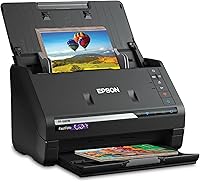
A scanner that captures both sides can preserve handwritten notes on the back of prints. The Epson FastFoto FF-680W offers a single-step scan that captures an image and handwritten notes on the photo’s reverse.
Should you keep edited copies separate from originals?
Yes, save an untouched master before cropping, rotating, or changing color. Store edited versions in a separate folder or make the edit status clear in their names.
For example, use 1984-06-family-picnic-master.tif for the original scan and 1984-06-family-picnic-edited.jpg for a sharing copy. The exact extensions depend on the format you choose.
This gives you a way back if an edit removes detail or you later want a different crop. It also helps prevent a resized copy from being mistaken for your best archival file.
File format affects storage and sharing choices. Read TIFF or JPEG for scanned photos before deciding which version to keep as your master.
What resolution should you scan before organizing?
Choose a scan resolution that suits how you plan to use the image. A small image meant for a screen has different needs from a print you may enlarge.
It is easier to organize once your scans have clear names and folders, but avoid rushing through the scanning stage. Our guide to what resolution to scan photos at explains how to choose a setting for common uses.
For recurring scans, write down the resolution and file format you chose. That note helps you keep later batches consistent.
How do you organize a large photo collection in batches?
Work through one small group at a time, such as a single envelope or album page. Scan, review, name, and file that group before moving to the next one.
A simple batch checklist can keep the process manageable:
- Record any date or label already on the envelope.
- Scan the photos and check that each file opens.
- Put the scans in the right year or decade folder.
- Rename the pictures you can identify.
- Make a backup before starting another large batch.
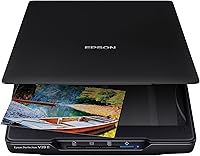
If many prints need scanning, the Epson FastFoto FF-680W can batch-scan up to 36 photos at a time, while the Plustek ePhoto Z300 is designed for inserting photos one by one. Choose the workflow that fits your pile and how much sorting you want to do as you go.
For faster scanning, plan how you will review and rename files afterward. A large batch can save scanning time, but it still needs clear folder and file names.
How can you keep physical prints connected to digital files?
Keep prints in their original order when possible, and record any box or album label in your digital notes. That gives you a path from a scan back to the physical collection.
If you move prints into new storage, label the box with the same year or group name used in the digital folders. The Lineco Archival Storage Box is made for storing photos and documents, with acid-free and lignin-free materials and a drop-front opening.
Don't write on the back of delicate or valuable photos unless a conservation professional advises it. A separate label or inventory note can identify the contents without marking the print.
Where should you back up organized photo files?
Keep a second copy in a separate place, such as an external drive or a cloud account. A backup on the same computer won't help if that computer is lost or damaged.
After copying files, open a few from the backup to make sure they work. Keep the folder names and file names consistent across copies, and set a reminder to update the backup when you add a new batch.
If you use cloud storage, check that the files finished uploading before deleting temporary copies. Don't make the cloud folder your only copy.
What is a simple system for organizing scanned photos?
For how to organize scanned photos, start with year or decade folders, use dates and short descriptions in filenames, and keep an unchanged master. Add names and events only when you know them, then back up the collection separately.
Choose a batch workflow if speed matters, or scan and label one print at a time if careful identification matters more. Before you begin the next box, review tips for scanning old photos to reduce avoidable rescans.
Frequently asked questions
What is the best way to organize scanned photos?
Start with one main folder, then sort pictures into folders by year or decade. Give each file a date and short description when you know them, such as 1984-06-family-picnic.
Keep an untouched master copy, and back it up to a separate drive or trusted cloud service.
Should I rename every scanned photo?
Rename photos you want to find often, starting with the date when you know it and adding a brief person, place, or event. For a large collection, work in small batches and use a consistent pattern.
Don't guess at dates or identities; mark them as unknown if you're unsure.
What file format should I use for scanned photos?
Choose a format based on how you'll use the scan. A lossless format such as TIFF can suit a master archive, while JPEG is convenient for sharing and everyday viewing.
Keep an unchanged master before editing or converting; our TIFF vs.
JPEG guide explains the tradeoffs.
How should I back up scanned photos?
Keep at least one copy separate from the computer where you organize the photos. You can use an external drive or a cloud account, and a second backup gives more protection if one copy is lost or damaged.
Check that files open after copying, and review the backup from time to time.