How to Scan Multiple Photos at Once and Split Them
Place several photos on the scanner bed with a small gap between each, then use software that can detect and save each photo as its own file. Check the split results before saving, since close edges or overlapping prints can confuse automatic cropping.
On this page (6 sections)
To scan multiple photos at once, arrange them separately on the scanner bed, scan them together, then use software that can detect and save each print as its own file. Leave a little space around every photo and review the crops before you keep them.
This method can save time when you have a stack of prints, but it works best when the photos lie flat and don’t touch. For large batches, a photo scanner with batch scanning may help; for a few valuable or delicate prints, a flatbed gives you more control over placement.
How do you scan multiple photos on a flatbed?
Place each photo face down with a narrow gap around it, then scan the full bed. Keep prints from overlapping and align them with the scanner’s edge so the software has clear boundaries to detect.
- Clean the scanner glass with a soft, lint-free cloth.
- Dust the photos gently before placing them.
- Lay each photo face down, leaving space between prints.
- Close the lid without shifting the photos.
- Scan the group at your chosen resolution.
- Use the software’s photo-splitting or auto-crop feature, if available.
- Check each resulting image before saving.
The Library of Congress guidance for caring for family photographs recommends handling photos by their edges and keeping them in a clean, stable environment. Follow your scanner’s instructions, too, especially for delicate or curled prints.
How to scan multiple photos at once and split them automatically
Choose software with a feature that detects separate photos and saves each one individually. The exact button name varies by scanner app; look for terms such as auto crop, photo detection, or multiple-area scanning.
After the scan, inspect every crop. Software can mistake a dark border, a shadow, or a photo’s white edge for the boundary between prints.
Rotate or adjust any image that came out crooked, and rescan a print if the crop cuts off part of it.
If your scanner app doesn’t split photos automatically, scan the group as one image. Open it in an image editor, crop each photo separately, and save each crop as its own file.
What scan settings help the photos split cleanly?
Use a resolution that fits how you’ll use the scans, and choose color for color prints. A higher resolution can capture more detail but makes larger files and takes more storage space.
For prints you’ll mostly view or share, 300 dpi is a useful starting point. If you may enlarge a small print or do more editing, consider a higher setting; our guide to what resolution to scan photos explains the tradeoffs.
Use color mode for color photos, even if the print looks faded. For black-and-white prints, grayscale can preserve tonal detail.
Save a high-quality original before making edits, then create smaller copies for sharing if needed.
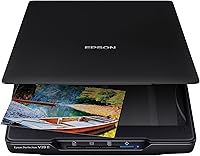
A flatbed scanner can suit mixed sizes and prints you want to position one by one. The Epson Perfection V39 II is a compact flatbed option that includes Epson ScanSmart software and can stitch oversized images together.
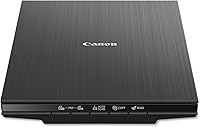
The Canon CanoScan LiDE 400 is another flatbed option, with auto scan mode that detects what you’re scanning. Its EZ buttons include PDF controls, so it can also suit a household that scans documents as well as prints.
For a broader look at scanner types and common home uses, see best scanner for home use.
When does a batch photo scanner make more sense?
A batch photo scanner can suit a large stack of prints you want to digitize in fewer rounds. Check its supported photo sizes and handling guidance before feeding older or fragile prints.
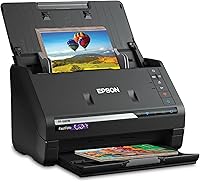
The Epson FastFoto FF-680W can batch-scan up to 36 photos at a time, according to Epson. Its features include de-skew and crop options, plus a carrier sheet for delicate photos.
A feeder changes how you prepare photos: follow its instructions for size, condition, and orientation rather than placing prints on a glass bed. If a photo is curled, cracked, sticky, or otherwise fragile, use a method that avoids feeding it through a mechanism.
How do you name and check the individual files?
Give each saved image a clear filename and confirm that every crop contains one complete photo. A date, family name, event, or short description can make the files easier to find later.
For example, use 1998-summer-camp-01.jpg and 1998-summer-camp-02.jpg for two photos from the same event. If you don’t know the exact date, use an approximate year or a label such as undated.
Check for missing edges, clipped faces, rotation, dust, and accidental duplicates.
Keep a full-bed scan until you’re satisfied with the separate files, then back up the finished images. The guide to how to scan old photos to a computer covers the basic transfer and saving steps.
What mistakes make automatic splitting harder?
The most common problems are touching photos, uneven placement, and dark gaps that look like photo edges. Leave a visible border around each print and keep the scanner glass clean.
Don’t put more photos on the bed than can lie flat with space between them. A crowded scan may save a few seconds at first, but it can mean more manual cropping afterward.
Dust on the glass or prints can show up in every scan. For a simple prep routine, see tips for scanning old photos.
What is the simplest way to choose your method?
For a small group of mixed prints, use a flatbed and check whether its software can split separate photos into individual files. For a large, suitable batch, consider a photo scanner that supports batch scanning and inspect every output.
Keep space between prints, choose a resolution for your intended use, and save files with names you’ll recognize later. If you need to revisit the scanner choice, start with best scanner for home use.
Frequently asked questions
Can I scan multiple photos at once on a flatbed scanner?
Yes. Arrange prints face down with space between them, scan the full bed, and use software with an automatic photo-splitting or crop feature.
Review each crop before saving because touching edges, shadows, or tilted prints can cause a split to miss part of a photo.
How do I scan multiple photos into individual files?
Use a scanner app that can detect separate photos in one scan and save each selection as an individual image. If your software lacks that option, scan the group, open the image in a photo editor, crop each print, and save each crop with a clear filename.
What resolution should I use for several old photos?
For ordinary prints, 300 dpi is a practical starting point for sharing and viewing. Choose a higher resolution if you plan to enlarge a small print or want more detail for later editing; see our guide to what resolution to scan photos for more.
Can an automatic photo scanner split photos for me?
Some scanner software can detect separate prints and create individual files from a batch scan. The Epson FastFoto FF-680W supports batch scanning, but review the saved images for crop errors and follow the scanner's instructions for the types of photos you have.