Tips for Scanning Old Photos
Clean the glass, prepare photos in small batches, and choose your file settings before scanning to save time and avoid rescans. Check each image before putting the original away.
On this page (8 sections)
- What tips for scanning old photos save the most time?
- How should you prepare old photos before scanning?
- What scanner setup helps prevent repeat work?
- How do you keep photo batches in order?
- What should you check before putting originals away?
- How should you choose scan resolution and file type?
- How do you scan photo backs with writing?
- Which tips should you follow for scanning old photos?
Clean the glass, prepare photos in small batches, and choose your file settings before scanning to save time and avoid rescans. Check every image for dust, cropping, and orientation before you put the original away.
A little preparation prevents most repeat work. Sort the prints, clear a clean space, and decide where the files will go before you start.
What tips for scanning old photos save the most time?
A clean scanner, consistent settings, and a quick check after each scan are the most useful time savers. They reduce dust spots, mismatched files, and the need to handle prints again.
- Make sure the scanner glass is clean and dry.
- Sort photos into small batches and keep them in order.
- Choose resolution, color, and file type before scanning.
- Keep notes on prints that have writing on the back.
- Inspect each scan before returning the original to storage.
- Save files in clearly named folders and make a backup.
Don't put a whole box of prints beside the scanner at once. A smaller group is easier to track and less likely to get mixed up.
How should you prepare old photos before scanning?
Handle prints by their edges and remove only loose dust. Clean preparation helps avoid fingerprints and specks appearing in the digital image.
Use a clean, soft brush for loose dust on the print. Avoid rubbing the image, using household cleaners, or adding liquid, especially if the surface is cracked, peeling, or sticky.
Keep drinks and food away from the work area. Place photos face up in the order you plan to scan them, and keep a note of any names or dates that matter.
For more detailed handling advice, read how to clean old photos before scanning.
Can a microfiber cloth clean scanner glass?
A clean microfiber cloth can help remove dust from scanner glass, but keep it dry and use light pressure. Don't use the same cloth on a fragile print.
Puomue's 16 x 16 in microfiber glass cloths are designed for glass and other smooth surfaces. Keep one reserved for scanner glass so it doesn't pick up grit from other cleaning jobs.
If the glass has smudges that a dry cloth won't remove, follow the scanner maker's cleaning instructions. Don't spray liquid directly onto the glass or let moisture reach the scanner edges.
What scanner setup helps prevent repeat work?
Use a flat, clean scanning surface and confirm your settings with one test image. A quick preview lets you fix cropping or color choices before scanning a full batch.
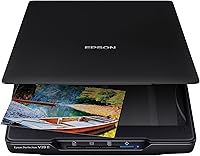
A flatbed scanner gives you control over how each print sits on the glass. The Epson Perfection V39 II is a compact flatbed that scans photos and documents, and its removable lid can accommodate bulky items such as books and photo albums.
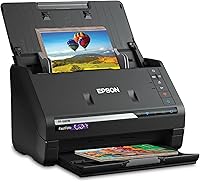
For a large box of prints, a batch-feeding photo scanner may save handling time. The Epson FastFoto FF-680W can scan up to 36 photos at a time and captures both sides in a single scan, which can help preserve handwritten notes on photo backs.
Choose settings based on how you'll use the files. Our guide to what resolution to scan photos explains how resolution affects detail and file size.
How do you keep photo batches in order?
Scan one labeled batch at a time and keep the prints in the same order as their files. This makes it easier to identify people and events later.
Use simple folder names based on a known family, event, or approximate date. If you don't know the exact year, a broad label such as “Grandma’s album, undated” is more useful than guessing.
Name each file with a sequence number, such as family-picnic-01 and family-picnic-02. If several people are sorting or scanning, write the batch name on a note kept beside the prints, not on the photo.
For a step-by-step workflow, see how to scan old photos to a computer.
Should you scan photos one at a time or several at once?
Scan one at a time when prints are fragile, unusually sized, or likely to overlap. Scan several together only if your scanner software can separate them cleanly and you can check the results.
The Epson FastFoto FF-680W supports batch scanning, while a flatbed like the Epson Perfection V39 II is suited to placing individual photos on the glass. Choose the workflow that matches your print condition and the amount of sorting you want to do.
Our guide to scanning multiple photos at once covers how to separate grouped scans into individual files.
What should you check before putting originals away?
Review every scan for the full image, correct orientation, and visible dust. Finding a problem now is easier than locating the same print later.
Zoom in enough to spot a clipped edge or a stray mark. Also compare the file name to the batch order and make sure any notes on the back have been captured when they matter.
Store finished prints in a dry, organized place, separated from the work surface. The Lineco Archival Storage Box is made with acid-free, lignin-free materials and has a drop-front design for retrieving stored items.
Keep digital files in at least two places, such as a computer and a separate backup drive or cloud account. A scan is easier to use when its folder name explains what the images show.
How should you choose scan resolution and file type?
Choose resolution based on whether you'll share, print, or enlarge the scan. Higher settings can preserve more detail, but they also create larger files.
Decide on the file type before the first batch so the whole set is consistent. If you may edit or print the images later, keep an archival copy and make smaller sharing copies as needed.
Don't change settings halfway through a batch unless the photos have a clear reason to differ. For more detail, see what resolution to scan photos and TIFF or JPEG for scanned photos.
How do you scan photo backs with writing?
Scan the back whenever its notes add useful names, dates, or context. Use a matching file name so the writing stays linked to the correct photo.
For example, save the image as family-reunion-04-front and its back as family-reunion-04-back. If your scanner supports scanning both sides in one pass, check that the front and back files are paired as expected.
Don't write labels directly on old prints. Keep notes in a separate list or in the digital file name.
Which tips should you follow for scanning old photos?
The most useful tips for scanning old photos are cleaning the glass, sorting small batches, choosing settings first, and checking each image before storage. These steps prevent dust, lost context, and avoidable rescans.
Choose the Epson Perfection V39 II for a flatbed workflow with individual prints, or the Epson FastFoto FF-680W for batches and photo backs. Keep the Puomue cloth for scanner glass, and use the Lineco box to keep finished prints together.
If you want a full start-to-finish process, continue with how to scan old photos to a computer.
Frequently asked questions
What is the best way to scan old photos?
Clean the scanner glass, handle prints by their edges, and scan one small batch at a time. Choose a resolution and file format before starting, then check each image for dust, cropping, and focus before putting the original away.
Keep the digital files in a clearly named folder with a backup.
Should I clean old photos before scanning?
Remove loose dust with a clean, soft brush and handle prints by their edges. Avoid liquids, household cleaners, and rubbing the image surface, since old photos can be fragile or have delicate coatings.
If a print is stuck, peeling, or flaking, don't force it; scan what you can safely access.
How can I scan many old photos without rescanning them?
Sort prints into manageable batches, keep each batch in order, and scan at a setting that suits how you'll use the files. Preview the first scan, then check every image for skew, dust, cut-off edges, and the correct orientation before returning the originals to storage.
Should I scan the backs of old photos?
Scan the back when it has names, dates, places, or other family notes you may want to keep. Save the front and back with matching file names, such as family-trip-01-front and family-trip-01-back, so the information stays connected to the image.