TIFF vs JPEG for Photo Scanning: Which Is Better? (October 2026)
Choose TIFF for scans you plan to edit or keep as an archive, and JPEG for smaller files that are easy to share. For photo scanning, the best format depends on how you will use the image after saving it.
On this page (6 sections)
Choose TIFF for scans you plan to edit or keep as an archive, and JPEG for smaller files that are easy to share. For photo scanning, the best file format depends on what you will do with each image later.
TIFF can preserve a high-quality master without the repeated quality loss associated with JPEG compression. JPEG files are smaller and more convenient for sending, uploading and viewing on everyday devices.
A practical approach is to save one TIFF master, then export JPEG copies when you need to share or upload a photo. If you are scanning a large box of prints, think about storage and workflow before choosing a format for every scan.

TIFF vs JPEG for photo scanning: which should you choose?
Pick TIFF for editing and long-term preservation, and JPEG for sharing and routine use. Neither format makes a low-resolution scan sharper, so choose scan settings as well as a file type.
TIFF is a flexible image format that can store image data without lossy compression. It is a strong choice for a master file you may crop, adjust or print later.
JPEG compresses an image to reduce file size. That makes it convenient for sending to relatives or keeping on a phone, though repeated edits and saves can reduce image quality.
What is the best file format for scanning photos you may edit?
Save a TIFF master when you expect to make careful edits or revisit the scan later. Keep the original untouched and do your editing on a copy.
Each JPEG save can discard some image information, depending on the compression setting. Repeatedly opening, editing and saving the same JPEG can add more quality loss, so avoid treating it as your only archive copy.
TIFF files can take more storage space. If you have hundreds or thousands of prints, plan your folders and backups before scanning the whole collection.
When is JPEG a better choice?
Use JPEG when a small, widely shareable file matters more than keeping every bit of scan data. It works well for sending snapshots to family, uploading to a photo service or browsing on a phone.
A JPEG copy is also handy for everyday access to a much larger TIFF archive. Keep the TIFF master in a backed-up location, and make JPEG versions for the places where you need quick access.
How do TIFF and JPEG affect file size and storage?
JPEG usually needs less storage, while TIFF files can be substantially larger. The difference depends on scan dimensions, color depth and the format settings in your scanning software.
A high-resolution scan contains more image data than a small scan of the same print. Saving that larger scan as TIFF can make storage add up quickly across a family archive.
Estimate the space you need with a few sample photos before committing to a full batch. Check the file sizes, confirm that your backup has room, and decide whether you need TIFF masters for every print or only favorites.
Use a simple folder plan with the date or family grouping in each name. Our guide to organizing scanned photos covers a system that makes files easier to find after scanning.
Does TIFF always look better than JPEG?
TIFF can preserve more image information, but the scan settings and original photo also shape the result. Saving a blurry or poorly exposed scan as TIFF won't restore detail that the scanner never captured.
Resolution affects how much fine detail a scan records. Color settings and the condition of the print also matter, especially for faded or discolored photos.
Before scanning your whole collection, try one print at a few settings and compare the results at the size you plan to view or print. Our guide to choosing a photo scan resolution explains how to match resolution to the job.
JPEG is often good enough for an image you only plan to view on a screen. If you need room to crop, adjust color or make a larger print later, keep a TIFF master when your scanner supports it.
Which format works better for a large photo collection?
For large batches, choose a format that fits both your scanning pace and your storage plan. A fast workflow doesn't help if you lose track of files or run out of backup space.
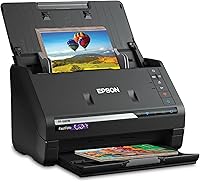
The Epson FastFoto FF-680W offers format options for sharing, archiving and enlarging, and it can batch-scan up to 36 photos at a time. Its photo workflow may suit a large box of prints when you want fewer individual placements.
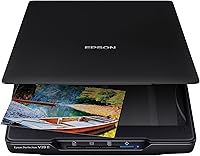
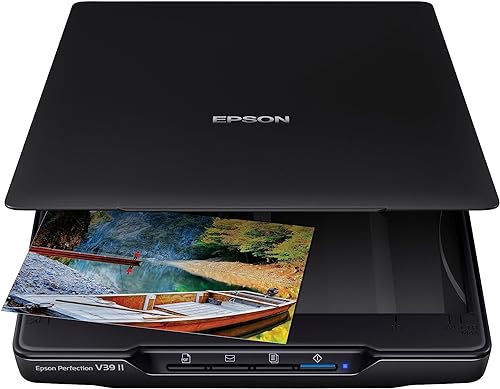
For occasional scanning at home, the Epson Perfection V39 II is a flatbed option with 4800 dpi optical resolution and one-click color restoration for faded photos. The Plustek ePhoto Z300 is designed for feeding prints one at a time and supports common photo sizes up to 8 x 10 inches.
Whichever scanner you use, clean and handle prints carefully before feeding them. Follow the scanner's instructions for delicate, curled or damaged photos.
Our tips for scanning old photos cover simple steps that can reduce dust, crooked scans and repeat work. If you still need to move the files onto your computer, see how to scan old photos to a computer.
Can you convert TIFF scans to JPEG later?
Yes, you can export a JPEG copy from a TIFF master whenever you need a smaller file. Keep the original TIFF unchanged so the JPEG remains a shareable copy rather than your only source.
Use a photo editor or export option in your scanning software, and choose a quality setting that balances file size and image detail. Avoid repeatedly resaving the JPEG; return to the TIFF master if you need another edit or export.
Keep names consistent so each JPEG stays connected to its original scan. For example, add a suffix like “share” or “web” to the JPEG filename while keeping the TIFF's core name the same.
TIFF vs JPEG for photo scanning: what is the simple rule?
Choose TIFF if you want a master for future editing, and JPEG if you want a smaller file for sharing. If you have room for both, scan or save the TIFF first and export JPEG copies as needed.
For one-off scans you will only view or send, JPEG may be all you need. For valuable family prints, a TIFF master gives you more room to work from later.
If you're choosing a scanner as well as a format, compare the home photo scanner guide with your photo volume and the amount of time you want to spend feeding prints.
Frequently asked questions
Is TIFF or JPEG better for scanning old photos?
TIFF is usually the better choice for a scan you plan to edit or preserve as a working archive, while JPEG is useful for sharing and everyday viewing. If your scanner offers both, save a TIFF master first and make JPEG copies for email, phones or social media.
Does JPEG reduce scanned photo quality?
JPEG uses compression that can discard some image information, especially when you save the same file repeatedly after editing. A single high-quality JPEG can still work well for viewing and sharing, but keep an uncompressed TIFF or another lossless master if you expect to make future edits.
Are TIFF files bigger than JPEG files?
TIFF files are generally much larger because they can preserve image data without the same lossy compression used by JPEG. The exact size depends on scan dimensions, color settings and compression options, so check available storage before scanning a large collection.
What file format should I use for scanned photos I want to share?
JPEG is usually the practical format for sharing scanned photos because its smaller files are easier to upload, email and open across devices. Keep a separate TIFF master if you want a less compressed source for future edits or prints.
Can a photo scanner save both TIFF and JPEG?
Some scanners and scanning apps offer both formats, but options vary by model and software. The Epson FastFoto FF-680W has format options for sharing and archiving, including JPEG and TIFF; check your scanner's settings for the exact choices before starting a batch.