How to Use the Epson FastFoto FF-680W
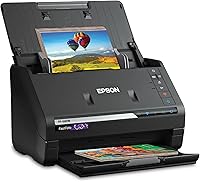
To use the Epson FastFoto FF-680W, install the FastFoto app and connect by USB or Wi-Fi, then load photos face down in the feeder and pick a dpi before scanning. It scans up to 36 photos in a batch at about 1 photo per second at 300 dpi.
On this page (10 sections)
- How do you set up the Epson FastFoto FF-680W?
- How do you load photos in the feeder?
- What dpi should you pick for photos?
- How do the enhancement tools improve old photos?
- How do you scan the backs of photos too?
- How do you share and back up the scans?
- How do you keep the scanner clean and running well?
- Can the FastFoto FF-680W scan documents as well as photos?
- How do you plan a big photo scanning session?
- What should you know before your first batch?
To use the Epson FastFoto FF-680W, install the Epson FastFoto app and connect the scanner by USB or Wi-Fi, then load photos face down in the feeder and choose a dpi before you start. It batch-scans up to 36 photos at a time, as fast as 1 photo per second at 300 dpi.
The steps below walk through how to use the Epson FastFoto FF-680W from unboxing to sharing. They cover the setup choices, the loading order that keeps prints moving, the dpi settings, and the care that keeps a long photo box job running.
How do you set up the Epson FastFoto FF-680W?
Set up the scanner by unpacking the carrier sheet and cables, plugging in the AC adapter, and installing the FastFoto app before your first scan. The box includes the AC adapter with power cable, a carrier sheet, a cleaning cloth, a SuperSpeed USB 3.0 cable, and a Start Here poster.
Start with the poster for the quick wiring order. Then choose your connection: USB 3.0 for a desk setup next to a computer, or Wi-Fi for placement anywhere in the house.
Epson lists both USB and wireless connectivity, and Wi-Fi setup runs through the FastFoto app.
The app is the control center. Download it on a compatible phone or tablet to set up Wi-Fi, start scans, and later add voice or text captions to photos.
Data fees may apply when the app uses a mobile connection. For a fuller look at what the machine can do before you commit to a workflow, our Epson FastFoto FF-680W review covers the specs and features.
How do you load photos in the feeder?
Load photos face down against the guides, in an even stack of up to 36, and fan them first so the feeder grabs one sheet at a time. The FastFoto FF-680W handles Polaroids, panoramas, postcards, and prints up to 8 x 10 in.
Which side goes down?
Place the image side down so the scan head reads the picture. With duplex scanning, the scanner also captures the back in the same pass, which picks up handwritten names and dates without a second run.
How do you avoid jams?
Fan the stack like a deck of cards, square the edges, and slide it in until the feeder pulls. Remove staples, paper clips, and sticky notes.
Feed fragile or curled prints one at a time in the included carrier sheet, which Epson provides for worry-free handling of delicate photos.
A quick dusting helps too. The scanner ships with a microfiber cloth for lightly dusting prints before they go in.
If your box of photos is dusty or smoky, clean them first using our guide to how to clean old photos before scanning.
What dpi should you pick for photos?
Use 300 dpi for sharing and 600 dpi TIFF for archiving, and reserve 1200 dpi for prints you plan to enlarge. The scanner offers these as separate format options, so the right choice depends on what you'll do with the file.
- 300 dpi: fast, small files for email, texts, and slideshows.
- 600 dpi TIFF: larger, sharper files for a long-term archive.
- 1200 dpi: the highest setting, best for a few standout photos.
- Mobile JPEG at up to 600 dpi: convenient when you scan from the app.
Higher settings slow the batch and fill storage faster. A good habit is to scan the whole box at 300 dpi first, then rescan favorites at 600 dpi or higher.
That keeps the first pass quick while protecting the prints you care about most.
How do the enhancement tools improve old photos?
The scanner's auto enhancement, color restoration, red-eye reduction, de-skew, crop, and rotate tools clean up faded or crooked prints as they scan. Epson calls this the Precise Picture Imaging System, and it does the basic repair work without extra software.
Auto enhancement lifts dull color and contrast. Color restoration targets faded prints, which suits photos that spent years in an album or a hot attic.
Red-eye reduction fixes flash shots, and de-skew and crop straighten crooked borders.
Rotation fixes sideways prints. These tools save you from editing every file by hand, though a badly damaged original may still need a photo editor.
Scan a test batch of 10 prints, check the results, then commit to the full box.
How do you scan the backs of photos too?
The FF-680W is a duplex scanner, so one pass captures the photo and any notes on the back. The maker calls this Single-Step Technology, and it preserves handwritten captions along with the image.
That matters for family collections. A name, date, or place written in pencil on the back is often the only clue to who is in the picture.
Scanning both sides keeps that information attached to the file.
When you review the scans in the app, pair each front with its back. The text overlay feature in the FastFoto app lets you add voice or text notes, so you can type the caption in your own words as well.
This is a simple way to pass stories along with the images.
How do you share and back up the scans?
Use auto-upload to Dropbox or Google Drive, or share from the FastFoto app, to get photos off the scanner and into safe storage. The FF-680W supports instant sharing and backup to both services as you scan.
The app also builds slideshows from your scanned photos on a smartphone. That turns a box of prints into something you can show at a family gathering or send to relatives.
Keep two copies in different places. One cloud service plus an external drive is a reasonable plan.
Once the files are safe, the next job is naming and sorting them so you can find them later. Our guide to how to organize scanned photos covers folder structures and naming.
How do you keep the scanner clean and running well?
Wipe the glass and feeder path with a soft cloth and check for dust before long batches. A clean path means fewer streaks and fewer jams.
The included microfiber cloth handles light dust on photos before they go in the feeder. For the glass and roller area, follow the cleaning steps in the manual.
A pack of soft cloths makes regular upkeep easy, and you can rotate a fresh one for each cleaning session.
Store the scanner with the feeder closed and the carrier sheet in a drawer. Keep prints away from heat and damp while you work through a large box.
If a print does jam, open the feeder as instructed and pull it gently in the direction of the paper path.
Can the FastFoto FF-680W scan documents as well as photos?
Yes. It's a document scanner too, with Epson ScanSmart software and OCR that turns scanned pages into readable text.
Epson lists document scans up to 240 in and speeds up to 45 ppm or 90 ipm.
That means one machine handles a mixed batch: a stack of receipts, a letter, and a few photos. The OCR feature matters when you want searchable text from old papers.
For the details on paper handling, see can the Epson FastFoto FF-680W scan documents.
How do you plan a big photo scanning session?
Sort first, scan in batches, and set a dpi that matches your goal. A little planning turns a mountain of prints into a manageable weekend project.
Pull out duplicates, blurry shots, and anything you don't want to keep. Group the rest by year or by person.
Scanning in labeled batches makes the next step, organizing, far easier.
Set a target: about 1 photo per second at 300 dpi means a few hundred prints in a short session. Work in stacks of 36 and let the scanner do the rest.
Check a few results from each batch so you catch a dusty glass or a wrong setting early.
What should you know before your first batch?
To use the Epson FastFoto FF-680W well, connect by USB or Wi-Fi, load prints face down in stacks of 36, choose 300 dpi for sharing or 600 dpi for archiving, and let auto enhancement handle faded color. Then share and back up the files before the next box.
Pick this scanner if you have years of prints to digitize and want a fast duplex pass that captures the back too. Use the carrier sheet for delicate photos and the included cloth to dust prints first.
Pair the scanning with cleaning and organizing, and a box of old photos becomes a searchable family archive.
Frequently asked questions
Does the Epson FastFoto FF-680W need a computer?
It connects by USB to a computer or by Wi-Fi to the Epson FastFoto app on a compatible mobile device. The app handles setup, scanning, and sharing, and data fees may apply when it uses your phone's connection.
Can the FastFoto FF-680W scan both sides of a photo at once?
Yes. It is a duplex scanner, so a single pass captures the photo and any handwriting on the back.
That saves you from flipping every print and gives you a place to note names and dates later.
What dpi should I use for photos?
Use 300 dpi for quick sharing and everyday digital copies. Choose 600 dpi TIFF for archiving and 1200 dpi for enlargements, and keep in mind that the higher settings slow down a long batch.
Can the Epson FastFoto FF-680W scan documents too?
Yes. It scans documents up to 240 in and runs as fast as 45 ppm or 90 ipm, with Epson ScanSmart software and OCR to turn pages into readable text.
The same feeder handles mixed batches of photos and papers.
How do I keep photos from jamming in the feeder?
Fan the stack, remove staples and sticky notes, and load up to 36 photos evenly against the guides. Dust prints with the included microfiber cloth first, and feed fragile or odd sizes one at a time in the carrier sheet.