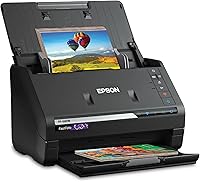
Can the Epson FastFoto FF-680W Scan Documents?
Yes, the Epson FastFoto FF-680W scans documents. It's built as a duplex photo and document scanner, so it feeds two-sided pages at up to 45 ppm and uses Epson ScanSmart with OCR to turn scans into searchable text.
On this page (9 sections)
- How does the FF-680W handle document scanning?
- What Epson ScanSmart software does for your paperwork
- Do you need a computer, or can Wi-Fi handle document scans?
- How fast is document scanning on the FF-680W?
- What resolution should you use for documents?
- Can the FF-680W scan photos and documents in the same job?
- How does the FF-680W compare with a document-first scanner?
- How do you keep document scans sharp?
- So, can the Epson FastFoto FF-680W scan documents?
Yes, the Epson FastFoto FF-680W scans documents. It's sold as a duplex photo and document scanner, so it feeds two-sided pages and uses Epson ScanSmart with OCR to turn scans into searchable text.
If your question is "can Epson FastFoto FF-680W scan documents," the short answer is that paperwork is part of its job, not an afterthought.
That matters because the FF-680W is best known as a photo scanner. Buyers who want it for old photo boxes often assume documents are a bonus at best.
Epson's own specs say otherwise: the same machine that batch-scans photos also scans pages at up to 45 ppm and 90 ipm.
How does the FF-680W handle document scanning?
It feeds documents through the same duplex path it uses for photos, with document settings handled in software. Epson rates it at up to 45 ppm and 90 ipm, which means it captures both sides of a page in one pass.
The feed is a sheet-fed design, so pages go in one at a time and come out scanned on both sides. Epson lists a document length up to 240 in, which covers legal paper and long receipts.
A duplex scanner like this saves the flip-and-rescan step on contracts, statements and two-sided forms.
The scan resolution also covers documents well. Epson lists 600 dpi optical resolution for the FF-680W, and its document archiving mode uses 600 dpi TIFF.
That's more than enough detail for typed pages, handwriting and small print. If you're unsure how fine to go for paperwork, our guide to what resolution to scan documents walks through the tradeoffs between file size and readability.
What Epson ScanSmart software does for your paperwork
Epson ScanSmart is the document side of the FF-680W, and its OCR converts scanned pages into readable text. That turns a stack of paper into files you can search and copy from.
OCR matters most for anyone digitizing bills, tax records or old letters. Without it, a scan is just a picture.
With it, the text inside the page becomes selectable and searchable. Epson bundles ScanSmart with the scanner, so the document workflow is ready once you install the software.
The scanner also supports auto-upload and backup to Dropbox and Google Drive. For paperwork, that means a scanned stack can land in cloud storage as you work instead of waiting for a manual upload later.
Combine that with OCR and you get a simple archive you can actually search.
ScanSmart runs on a connected computer. That's the practical limit to know: document scanning with text conversion is a desktop job, not something the phone app handles alone.
Do you need a computer, or can Wi-Fi handle document scans?
You need a computer for document scanning and OCR. The FF-680W has USB and Wi-Fi, and Epson says Wi-Fi setup is easy through the Epson FastFoto app.
But the app's strengths are photo sharing, voice and text overlays and slideshows, not document archiving.
Think of the connection as placement flexibility. Wi-Fi lets you put the scanner where the paper is, within range of your network.
The scan itself and the text conversion still happen through ScanSmart on your computer.
USB is the simpler choice for a desk setup. Wi-Fi suits a home office where the scanner sits away from the main machine.
Either way, plan on a computer nearby when you scan paperwork. Our full Epson FastFoto FF-680W review covers how the photo and document sides compare in daily use.
How fast is document scanning on the FF-680W?
Epson rates document scans at up to 45 ppm and 90 ipm. That figure is for pages, so a duplex job of two-sided documents moves quickly for a home scanner.
The number to keep separate is the photo speed. Epson's 1 photo per second and 36-photo batch figures describe the photo workflow, not document scanning.
Don't buy the FF-680W expecting the same per-sheet rate on pages. A 45 ppm duplex scanner is still fast for a home desk, but it's a different mode.
The 10-sheet feeder also sets the practical rhythm. Documents feed automatically in small batches.
For a 200-page archive, you'll reload the feeder several times. That's normal for a scanner in this class and keeps the feed gentle on pages.
What resolution should you use for documents?
600 dpi is the safe default for documents you need to read or archive. The FF-680W's document mode uses 600 dpi TIFF for archiving, and its optical resolution supports that.
Higher resolution isn't automatically better for paperwork. A 600 dpi color scan of a text page produces a large file, and a stack of them adds up fast.
For everyday paperwork, a lower color or grayscale setting keeps files smaller and still readable. For contracts, receipts and records you want to keep for years, the 600 dpi archiving mode earns its place.
The FF-680W also offers 300 dpi for easy sharing. That's a good split: scan at 300 dpi to email or send a document, and use 600 dpi TIFF when the scan is the archive copy.
Our resolution guide linked above spells out when each setting pays off.
Can the FF-680W scan photos and documents in the same job?
No, run them as separate jobs. The FF-680W switches between photo mode and document mode, and each has its own settings.
Mixing photos and pages in one stack invites jams and wrong output.
Photo mode is where Epson's auto enhancement, color restoration, red-eye reduction, de-skew, crop and rotate tools do their work. Those fixes help old snapshots but aren't what you want on a typed invoice.
Document mode, through ScanSmart, is the setting for paper.
The practical routine is to sort first. Run a photo batch through the photo workflow, then set up document mode for your paperwork.
It takes a minute to switch and keeps both jobs clean. The FF-680W's single-step technology also captures handwritten notes on the back of a photo in one scan, which is handy when a snapshot has a caption you want to keep.
How does the FF-680W compare with a document-first scanner?
The FF-680W wins for mixed photo and paper jobs, while a document-first machine wins for heavy paperwork volume. If your stack is mostly bills and records, the photo features are dead weight.
The ScanSnap iX2500 is built for documents. It has a 100-sheet feeder, 45 ppm duplex speed and Wi-Fi 6 or USB-C.
It also handles receipts, photos and business cards and automatically optimizes, names and sorts files. For a desk buried in paperwork, the larger feeder cuts down reloading.
The FF-680W's edge is photos. It batch-scans up to 36 photos at a time and covers Polaroids, panoramas, postcards and prints up to 8 x 10 in.
A document-first scanner can scan a photo, but the FF-680W's restoration and enhancement tools are aimed at old pictures.
If you're torn between brands, our Brother vs Epson scanner comparison covers where each maker's scanners fit. For the document-first route, our guide to how to choose a document scanner lists what to weigh before buying.
Who should pick the ScanSnap iX2500 instead?
Pick the ScanSnap iX2500 if paperwork is the main job and photos are occasional. Its 100-sheet feeder handles long stacks without constant reloading, and the large touchscreen offers personalized profiles.
It also guards against jams with a brake roller system, a multi-feed sensor and skew detection. Those features matter when you scan long documents in one go.
For a home office that processes statements and contracts weekly, that's the stronger fit.
Who should keep the FF-680W on the desk?
Keep the FF-680W if you're digitizing photos and paperwork together. Its duplex feed, 600 dpi document archiving and ScanSmart OCR cover both sides of the job in one machine.
It also keeps your setup simpler by covering photos and paperwork on one machine. Its footprint measures 11.7 x 11.7 x 6.9 inches and it weighs 8.2 pounds, and Wi-Fi placement helps.
The trade-off is the smaller 10-sheet document feeder and the need for a computer for OCR.
How do you keep document scans sharp?
Keep the feed path clean and the pages straight. A clean scanner and a squared stack do more for scan quality than any software setting.
The Fujitsu 24 Cleaning Wipe is a scanner cleaning wipe, though Fujitsu lists it for ScanSnap scanners, so check compatibility with the FF-680W before using it. Dust photos lightly with the microfiber cloth that comes with the FF-680W.
Epson also includes a carrier sheet for delicate originals.
Feed documents with the edges squared against the guides. A page that goes in crooked comes out skewed, and while ScanSmart and the scanner's de-skew tools can straighten it, clean feeding saves the cleanup.
For delicate or oddly sized paper, the carrier sheet protects the original.
So, can the Epson FastFoto FF-680W scan documents?
Yes. If you asked "can Epson FastFoto FF-680W scan documents," the answer is a clear yes: it scans two-sided pages at up to 45 ppm and uses Epson ScanSmart with OCR to make them searchable.
The decision rule is simple. Pick the FF-680W if you have photos and paperwork to digitize and want one machine for both.
Pick the ScanSnap iX2500 if your stack is almost all documents and the 100-sheet feeder matters more than photo restoration tools. Either way, keep the feed path clean, feed pages straight, and choose your resolution by what the scan is for: 300 dpi for sharing, 600 dpi for archiving.
Frequently asked questions
Can the FF-680W scan a document longer than a standard page?
Yes. Epson rates the FF-680W for pages up to 240 in long, which covers legal paper and long receipts.
Keep the page straight in the feeder and let the scanner pull it through rather than feeding it by hand.
Does the FF-680W scan both sides of a page in one pass?
Yes. It's a duplex scanner, so it captures the front and back in a single pass.
That saves time on double-sided contracts, statements and forms compared with flipping each page by hand.
Do I need a computer to scan documents with the FF-680W?
For full document work, yes. Epson ScanSmart and its OCR run on a connected computer.
The Epson FastFoto app adds phone control and photo sharing, but document archiving and text conversion are desktop jobs.
How many pages fit in the FF-680W feeder?
The standard feeder holds 10 sheets for automatic feeding. Epson's 36-photo batch figure applies to photos in the photo feeder, so keep document stacks modest and feed longer jobs in batches.