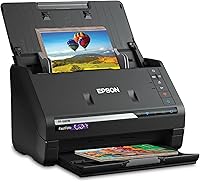
How to Choose a Document Scanner for Your Home Desk
Choose a document scanner by matching its feed style, capacity, connections and software to the papers you scan most. A home desk with regular stacks calls for an automatic document feeder, while occasional pages or travel may suit a compact or mobile scanner.
On this page (10 sections)
- How do you choose a document scanner for your papers?
- Do you need an automatic document feeder?
- Is duplex scanning worth it at home?
- Should you choose wireless or USB?
- How much desk space should you allow?
- Which document scanner fits your home desk?
- How should you compare scanner software and file tools?
- What should you check before buying?
- How to choose a document scanner for your routine
- What is the best resolution for scanned documents?
Choose a document scanner by matching your paper volume, feed style, desk space and file workflow to the scanner. If you scan stacks of forms or receipts, an automatic document feeder can reduce page-by-page handling; for occasional pages or travel, a compact or mobile model may fit better.
Start by listing what you scan in a typical week: single pages, two-sided forms, receipts, cards or mixed documents. Then decide whether you need wireless access, searchable files or a small footprint.
If you are still deciding between a document scanner and a general home model, our plain guide to scanners for home use explains the main scanner types.
How do you choose a document scanner for your papers?
Choose a scanner based on the documents you handle most often, then check its feeder, duplex function and software. A high-capacity feeder is useful for stacks, but it may take more desk space than a compact device.
Use this quick check before comparing specific models:
| Your routine | Feature to prioritize | Why it matters |
|---|---|---|
| Several pages at a time | Automatic document feeder (ADF) | Loads a stack instead of one sheet at a time |
| Two-sided forms and statements | Duplex scanning | Captures both sides in one pass |
| Receipts, cards and mixed papers | Flexible supported media | Helps match the scanner to different originals |
| Shared desk or mobile work | Compact size and connection options | Makes placement and access easier |
| Searchable records | OCR software | Can turn image scans into searchable or editable files |
What to look for in a document scanner
Look for a feeder that fits your usual batch size, duplex scanning if you regularly handle double-sided papers, and software that creates the file types you need. A scanner that handles your daily routine simply is more useful than one with features you rarely use.
Count a realistic stack, such as a month of bills or a group of forms. Compare that with the feeder capacity, and think about how often you want to split a large pile into batches.
Check how the scanner connects to your computer or mobile devices. USB may suit a fixed desk, while Wi-Fi can make it easier to send scans from different devices.
For records you need to search later, check for OCR and searchable PDF support. Our guide to document scan resolution covers how to choose a detail level for different papers.
Do you need an automatic document feeder?
An automatic document feeder is useful if you scan multiple loose pages regularly. It holds a stack and feeds pages in sequence, so you do not need to place every sheet by hand.
Compare feeder capacity with the largest batch you expect to scan. A larger feeder can reduce reloading, but it does not guarantee that every type of paper is suitable for the feed path.
Check the scanner's supported document types and follow its handling guidance for thin, curled or unusual originals. For fragile papers, a manual feed or flatbed may offer more control.
If receipts make up most of your paperwork, see our guide to scanners for receipts, bills and tax papers. It focuses on the kinds of small records that can be awkward to keep organized.
Is duplex scanning worth it at home?
Duplex scanning is worth considering if you often scan documents printed on both sides. It captures both sides in one pass, which can save handling time on double-sided forms and statements.
It may be less important if most of your papers are one-sided. In that case, compare feeder capacity, connection options and size before paying for a feature that rarely helps your routine.
For a closer explanation of the feature, read what a duplex scanner does. That guide can help you decide whether two-sided capture fits your paperwork.
Should you choose wireless or USB?
Choose USB for a scanner that stays at one computer, or Wi-Fi if you want more than one device to send scans. Some models support both, so consider where the scanner will sit and who needs access.
Wireless scanning can help when your home office includes a phone, tablet and computer. Check which devices and software are supported, because connection options vary by model.
A wired connection may be simpler if the scanner is next to one computer and your scanning happens there. Think about your actual workflow rather than choosing wireless just because it is available.
How much desk space should you allow?
Measure the scanner's working footprint, including space for trays or paper paths. A compact body can suit a crowded desk, while a desktop feeder may need extra room for loading and output.
Measure the spot where the scanner will sit, then check whether paper feeds from the front, top or back. Allow space to reach controls and remove completed scans without moving other desk items.
The ScanSnap iX1300 is designed for small spaces, while the Brother DS-640 is a mobile scanner powered through an included cable. For a compact wireless desktop option, the Epson WorkForce ES-C320W supports wireless scanning and has a 20-page feeder.
Which document scanner fits your home desk?
These four models illustrate different ways to match a scanner to your routine: larger paper batches, compact placement, mobile use or wireless access. Choose by the job you need to do most often.
Epson WorkForce ES-400 II: regular stacks and searchable records
The Epson WorkForce ES-400 II fits a home desk where scanning stacks is a regular task. Its 50-sheet feeder and duplex scanning are suited to batches of two-sided documents.
Epson ScanSmart lets you preview scans, email files and upload them to cloud services. The scanner can create searchable PDFs and convert scans to editable Word or Excel files.
The scanner also includes a TWAIN driver for use with many document management programs. Its listed connection is USB, so check that a wired setup works for your desk.
Choose it if you scan larger batches and want OCR tools. If you only scan a few pages at a time or need wireless access, compare the smaller options below.
ScanSnap iX1300: a compact desk with flexible connections
The ScanSnap iX1300 suits a desk where space and flexible connections both matter. It connects by USB or Wi-Fi and can send scans to computers, mobile devices and cloud services.
Its QUICK MENU sends scans to computer apps, while ScanSnap Home helps manage and edit scanned documents, receipts, business cards and photos. The scanner also supports two-sided scanning and automatic blank-page removal.
The feeder holds 20 sheets, less than the Epson ES-400 II. That makes it a better match for smaller batches or a tighter desk than for frequent large stacks.
Choose it if you want a compact scanner with Wi-Fi. Check device and operating system compatibility before deciding which connection to use.
Brother DS-640: occasional scans away from an outlet
The Brother DS-640 fits mobile scanning from a laptop or PC. It is powered through an included micro USB cable, so it does not need a wall outlet while connected to a computer.
Brother's iPrint&Scan software supports scan destinations such as files, email, cloud services and OCR. The scanner also supports Windows, Mac and Linux, with several driver options.
It handles one sheet at a time, so it is not the best fit for quickly processing a large stack. Choose it for portability and occasional pages, rather than as your main batch scanner.
Epson WorkForce ES-C320W: compact wireless batches
The Epson WorkForce ES-C320W suits a desk where wireless access and a compact design matter. Its 20-page feeder supports small batches, and it scans both sides in one pass.
It can scan to smartphones, tablets, computers and cloud storage accounts through Wi-Fi. Its flexible scan path handles standard paper, cards and passports.
The feeder is smaller than the ES-400 II's, so compare your typical stack before choosing it for regular paperwork. Choose it if you want a compact wireless model for modest batches.
How should you compare scanner software and file tools?
Compare software by checking where scans go and what you can do with them. Previewing, automatic file naming, OCR and cloud uploads can make saved documents easier to manage.
If you need searchable records, confirm that OCR is available and that its output suits your computer. Some scanners also support sending scans to email or cloud storage, while others focus on computer-based workflows.
Consider how you name and sort files. A predictable naming process can help you find a tax form or receipt later without opening several scans.
What should you check before buying?
Before choosing, confirm paper capacity, supported devices, connections and available desk space. Those details affect daily use more than a feature you may rarely need.
- Count the largest paper batch you expect to scan.
- Decide whether you need duplex scanning.
- Check support for receipts, cards, passports or other nonstandard papers you handle.
- Confirm USB, Wi-Fi or mobile support matches your devices.
- Check whether the software offers OCR and the file types you want.
- Measure room for loading and collecting pages.
For a home desk with frequent stacks, start with an ADF and compare its capacity with your batch size. For smaller batches, weigh compact size and wireless access; for occasional scans away from a desk, consider a mobile scanner.
How to choose a document scanner for your routine
To choose a document scanner, start with your usual batch size and the way you want to save files. Pick a larger feeder for regular stacks, duplex scanning for two-sided papers, and wireless or mobile features when your setup calls for them.
The Epson ES-400 II fits larger batches and OCR workflows. The ScanSnap iX1300 and Epson ES-C320W suit compact desks with wireless needs, while the Brother DS-640 is built for cable-powered mobile scanning.
If receipts are your main concern, compare the best scanners for receipts next. For a wider look at scanner types, return to our home scanner guide.
What is the best resolution for scanned documents?
For routine document scans, 300 dpi is a reasonable starting point for readable text and manageable files. Use more detail when small print or a particular recordkeeping need calls for it, and check that your software saves the format you need.
Resolution is only one part of a useful scan. Paper condition, color settings, OCR and file organization also affect whether you can read and find the document later.
See what resolution to scan documents at for guidance on choosing settings for common paper records.
Frequently asked questions
What should I look for in a home document scanner?
Start with the kinds and volume of papers you scan. Look for an automatic feeder if you handle stacks, duplex scanning if pages have print on both sides, and a connection and file workflow that fit your devices.
Check desk space and the types of cards or documents you need to feed.
Do I need a duplex scanner for home use?
A duplex scanner is useful if you regularly scan double-sided forms, statements or other papers because it captures both sides in one pass. If nearly all your pages are single-sided, a duplex feature may matter less than feeder capacity, desk space or wireless access.
Is a flatbed or document feeder better for papers?
A document feeder is usually the better fit for stacks of loose pages because it pulls sheets through without placing each one on a glass bed. A flatbed is useful for items that should not go through a feeder, such as bound material or delicate originals.
What resolution should I scan documents at?
For routine readable documents, 300 dpi is a common starting point; use higher resolution when small print or later image work calls for more detail. Choose a setting that suits the document and intended use, since higher detail can increase file size.
Can a home scanner make searchable PDFs?
Some scanner software includes optical character recognition, or OCR, which can turn scanned pages into searchable PDFs or editable text files. Check that the scanner's software supports the file types and devices you use, and review important converted text for errors.