How to Use a Canon Scanner With a Laptop
To use a Canon scanner on laptop, install Canon's ScanGear driver or Canon software first, then connect the scanner by USB and open the scan app. Pick the document type and resolution, preview if you need to, then scan and save as PDF or photo.
On this page (9 sections)
- What do you need before you start?
- How do you install the Canon scanner software on a laptop?
- How do you connect a Canon scanner to a laptop?
- How do you scan a document or photo?
- What resolution and color settings should you choose?
- Which Canon scanner setup fits a laptop?
- How do you keep scans clean and avoid common errors?
- How do you scan multi-page documents and keep files tidy?
- How to use a Canon scanner on laptop: what's the quick routine?
To use a Canon scanner on laptop, install the Canon driver or software first, connect the scanner with its USB cable, and open the scan program. Choose document or photo mode, set a sensible resolution, preview, then scan and save.
The steps are the same for most Canon flatbeds, including the slim USB models. The two things that trip people up are installing the software in the right order and picking a resolution that fits the job.
Both are easy once you know the sequence.
What do you need before you start?
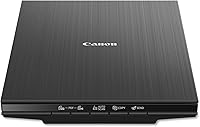
You need the scanner, its USB cable, the laptop, and Canon's software or driver. A flatbed like the CanoScan LiDE 400 needs only one USB Type-C cable for both data and power.
Clear the desk so the scanner lid can open fully. Wipe the glass with a soft cloth before the first scan, because dust shows up as specks in photos and as false marks in text.
Check your laptop's operating system version, since Canon lists support by OS.
Keep the scanner's quick start guide nearby. It names the exact download page and the order to follow.
The LiDE 400's included cable is USB Type-C, so a laptop with a USB-C port takes it directly, and an adapter covers older USB-A ports.
The LiDE 400's maximum document size is 8.5 by 11.7 inches, so a letter or A4 page fits the glass with room at the edges. Anything larger has to be scanned in sections.
It weighs 3.6 pounds and measures 0.4 inches thick, so it needs less desk depth than a thick office flatbed.
How do you install the Canon scanner software on a laptop?
Install the Canon driver or Canon software before or during setup, following the order in the quick start guide. The driver is the piece that lets the laptop talk to the scanner.
Go to Canon's support site for your model and pick the download that matches your OS. Run the installer and let it finish before you open the scanner.
Some Canon models use the ScanGear driver, and the LiDE 400 also works with Canon's scanning software.
If the guide says to connect the cable partway through the install, do that when prompted. If you plugged in early and the laptop didn't react, unplug, install, and reconnect.
Restart the laptop if the scanner still doesn't show up.
Canon lists support for Windows 7, Windows 8.1 and Windows 10, plus macOS X v10.11 through macOS v10.13 High Sierra. Linux works through the ScanGear MP driver, but it has to be installed separately.
Match the download to your exact version, since a driver built for an older OS may install and still fail to find the scanner.
How do you connect a Canon scanner to a laptop?
Connect the scanner directly to a laptop USB port with its own cable, not through an unpowered hub. Then switch the scanner on and wait for the laptop to recognize it.
A USB-only model needs no Wi-Fi or router, so there's nothing to pair. The LiDE 400 takes power and data over that single USB Type-C cable.
That makes it a simple choice for a desk in a room with weak Wi-Fi.
If the laptop has no matching port, use a good-quality adapter rather than a long extension chain. Avoid plugging the scanner and a portable drive into the same unpowered hub.
A direct port is the most reliable connection. Keep the cable seated firmly at both ends, because a loose plug can drop the scanner partway through a long scan.
How do you scan a document or photo?
Open your scan app, choose document or photo mode, set the resolution, then preview and scan. The preview shows cropping and alignment before the real pass.
Scanning a document to PDF
Place the page face down against the corner marks on the glass and close the lid. In the software, pick a document or text mode.
For a searchable PDF, choose an option that runs OCR so the words become selectable.
Set 300 dpi for normal text. Raise it to 600 dpi for small print or fine detail.
Use the flatbed's PDF buttons on models that have them to save multi-page files directly. On the LiDE 400 those buttons save multi-page PDFs that are editable and searchable, which saves a step in the software each time.
Scanning a photo
Lay the photo flat with no overlap at the edges. Choose photo mode and a resolution of 1200 dpi or higher if you plan to enlarge or restore it.
Preview first to check straightness.
Turn on image cleanup features such as color restore and dust removal when the software offers them. For a large print, scan in sections and stitch them later in your editor.
Save a master copy before any editing. The LiDE 400 includes color restore and dust removal, and its 48-bit color depth keeps more color data for later edits than a basic 24-bit scan.
What resolution and color settings should you choose?
Match the resolution to the final use: 300 dpi for documents, 600 dpi for small print, and 1200 dpi or more for photos you'll enlarge. Higher settings mean bigger files and longer scans.
Use color mode for photos, artwork and anything where hue matters. Use grayscale for black-and-white documents and sketches.
Use a black-and-white mode for plain text when file size matters more than nuance.
Save documents as PDF and photos as TIFF or high-quality JPEG. A TIFF keeps more detail for editing, while a JPEG is smaller and easier to share.
Scan once at a good master size, then export smaller copies.
The LiDE 400 reaches 4800 x 4800 dpi resolution and has 48-bit color depth. That's more than most home jobs need, but it leaves room for a detailed photo master.
Its grayscale depth is 16-bit, which gives smooth gradients in black-and-white photos. The CIS sensor and LED light source mean the scanner warms up quickly with no lamp to wait on.
Which Canon scanner setup fits a laptop?
A slim USB flatbed is the simplest match for laptop use. It needs one cable, no network, and little desk space, which suits a kitchen table or a shared home office.
The LiDE 400 measures 7.7 by 14.5 by 0.4 inches and weighs 3.6 pounds, so it stores upright or in a drawer. It scans as fast as 8 seconds and covers documents up to 8.5 x 11.7 inches.
Canon lists Windows and Mac support plus a Linux driver path. Its five built-in EZ buttons handle common jobs like auto scan and multi-page PDF without digging through menus.
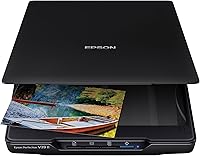
The Epson Perfection V39 II is a strong alternative if you also scan books. Its high-rise removable lid lets thick pages sit flat, and the built-in kickstand stands it upright for storage.
It scans a letter page in as fast as 10 seconds. Epson's ScanSmart software can stitch oversized images together and send scans to cloud storage once the software is installed on a connected computer.
If you need automatic page feeding for long batches, a document scanner is the better tool. Our guide to the Canon imageFORMULA R40 scanner covers that workflow.
For everyday flatbed scanning from a laptop, either the Canon or Epson above does the job.
How do you keep scans clean and avoid common errors?
Wipe the glass and the lid pad regularly and keep the cable firm in its port. Most "bad scan" complaints trace back to dust, a loose cable or the wrong mode.
A cleaning wipe made for scanners lifts dust without leaving lint. Run one over the glass before a photo session, then let the surface dry fully.
The Fujitsu wipe is sold for scanner use and comes in a pack. An unscented wipe is the safer pick around photo paper, since a scented cleaner can leave a faint residue.
If the laptop loses the scanner mid-scan, try another USB port and a shorter cable. Check the driver version against your OS, and avoid sleep mode during a long batch.
Close other heavy apps if scans seem slow. A dusty glass is the most common cause of a speck that appears in the same spot on every page, so clean first before chasing software fixes.
How do you scan multi-page documents and keep files tidy?
Scan pages one by one into a single PDF, or let a sheet-fed scanner handle the batch. Name files by date and topic so you can find them later.
On a flatbed, start a new multi-page PDF in the software and add each page as you place it. The LiDE 400's PDF buttons save multi-page files that are editable and searchable.
That works well for contracts, receipts and forms. The flatbed holds one sheet at a time, so each page goes on the glass in turn.
For long batches, a sheet-fed model with a document feeder saves time. Compare the options in our guide to the best duplex scanner for home use, which covers automatic two-sided feeding.
For a few pages at a time, the flatbed and your laptop are enough.
How to use a Canon scanner on laptop: what's the quick routine?
The routine to remember for how to use a Canon scanner on laptop is software first, then USB, then mode and resolution. Once that's set, scanning is just place, preview, scan and save.
Set your defaults in the software so each session starts right. Save documents as searchable PDFs and photos as master files.
Wipe the glass before a photo batch and keep the cable direct.
If you haven't bought a scanner yet, start with our plain guide to a scanner for home use. And if you're weighing Canon's two slim models, our Canon LiDE 300 vs 400 comparison helps you choose.
Frequently asked questions
Do I need to install software before plugging in a Canon scanner?
Install the driver or Canon software first when the setup guide says to. On many Canon models the laptop detects the scanner and finishes setup after the software is in place.
If you plug it in early and nothing appears, unplug it, install the driver, and reconnect.
Why won't my laptop detect the Canon scanner?
Try another USB port and a known-good cable, and avoid unpowered hubs. Make sure the scanner is switched on and the driver matches your operating system version.
Restart the laptop, then open the scan app and refresh the device list.
Can I scan from a laptop without Wi-Fi?
Yes. A USB-only model like the Canon CanoScan LiDE 400 needs no network at all.
It carries data and power over one USB Type-C cable, so the laptop and scanner work in a room with no Wi-Fi signal.
What resolution should I use for documents and photos?
Use 300 dpi for text documents and everyday PDFs. Go to 600 dpi or higher for small print and 1200 dpi or more for photos you plan to enlarge.
Higher settings make bigger files and take longer, so match the number to the job.
How do I scan a multi-page document into one PDF?
Choose a PDF output option in Canon's scan software and keep adding pages from the flatbed. The LiDE 400 has built-in PDF buttons that save multi-page files you can search and edit.
A sheet-fed scanner does the page turning for longer batches.