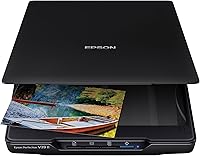
How to Get a Fujitsu Scanner to Work
To get a Fujitsu scanner to work, install the current ScanSnap Home software, connect by USB-C or Wi-Fi, and run the setup profile once. Most failures come from a stale driver, a loose cable or paper loaded wrong in the feeder.
On this page (9 sections)
- What do you need before you start?
- How do you install the right Fujitsu scanner software?
- How do you connect a Fujitsu scanner by USB?
- How do you connect a Fujitsu scanner over Wi-Fi?
- How do you load paper so the feeder doesn't jam?
- What should you check when the scan comes out wrong?
- Which scanner should you pick if you're setting up from scratch?
- How do you test the scanner and keep it working?
- What should you do next?
To get a Fujitsu scanner to work, install the current ScanSnap Home software, connect by USB-C or Wi-Fi, and run the setup profile once. Most failures come from a stale driver, a loose cable or paper loaded wrong in the feeder.
The steps below follow the order that clears the most common faults first. Work through them one at a time, and you'll usually have the scanner running in a few minutes.
What do you need before you start?
Have the scanner, its power supply, a USB-C cable and the current ScanSnap Home download ready before you touch any settings. A clean start prevents half-finished installs that confuse the next step.
Clear a flat surface with room for the feeder to open fully. Keep the scanner away from direct sun and away from the edge of the desk so the cable doesn't pull.
Check the box for the power adapter and cable. The iX2500 runs on 17 watts and connects by USB-C or Wi-Fi, so you can choose either route depending on where your computer sits.
Write down your Wi-Fi network name and password if you plan to scan without a computer. You'll need them on the touchscreen during setup.
How do you install the right Fujitsu scanner software?
Download ScanSnap Home from the official Fujitsu or ScanSnap site and run the installer for your operating system. The bundled disc is often older than the current release, so skip it.
Pick the version that matches your machine. The iX2500 supports Windows 11 and Windows 10 (32-bit and 64-bit) plus macOS Monterey 12 or later.
Close other scanner utilities before you start. Two driver stacks on one computer is a frequent cause of "scanner not found" errors.
Follow the installer prompts and let it finish before you plug in the scanner. Some setups ask you to connect the cable at a specific point, so read each screen.
If your machine is a Brother model instead, the process differs slightly. Our guide to how to download brother scanner to computer walks through that installer.
What if the installer can't find the scanner?
Unplug the scanner, close the installer, reconnect the cable and run setup again. The installer needs a live connection at the right moment, and a cable plugged in too early can be missed.
Try a different USB port, ideally one directly on the computer rather than a hub. A powered hub helps some setups, but a direct port removes one variable.
Restart the computer and the scanner, then repeat. If the software still can't see it, uninstall ScanSnap Home fully and start clean.
How do you connect a Fujitsu scanner by USB?
Connect the USB-C cable to the scanner and a free port on your computer, then let the system recognize it. USB is the steadier route for a first setup.
Use the cable that came with the scanner when you can. Longer or charge-only cables can fail to carry data even when the scanner powers on.
Watch for a connection chime or a device icon in your system settings. That confirms the computer sees the hardware before the software does anything.
If nothing happens, swap the cable and the port. A dead cable is more common than a dead scanner.
How do you connect a Fujitsu scanner over Wi-Fi?
Use the touchscreen to join your network, or connect the scanner to the computer with USB first and set up Wi-Fi from ScanSnap Home. The iX2500 has built-in Wi-Fi 6.
Joining from the touchscreen is the quickest path. Pick your network, enter the password and wait for the confirmation.
The Wi-Fi route also lets you scan without a computer. ScanSnap Cloud sends files straight to a cloud service, so the scanner works on its own once the profile is set.
Keep the scanner and the router on the same network band where possible. A 5 GHz network is faster, but a 2.4 GHz one reaches further through walls.
How do you load paper so the feeder doesn't jam?
Fan the stack, square the edges and load it face down within the 100-sheet capacity. Good loading prevents most jams before they start.
The iX2500 feeds double-sided documents at 45 pages per minute. Keep the stack below the fill line and slide the side guides until they touch the paper.
The brake roller system feeds pages smoothly, and the multi-feed sensor catches sheets stuck together. Skew detection stops crooked pages from tearing.
If a page jams, open the feeder as the manual directs and pull the sheet out slowly. Don't yank it, since a torn corner left inside causes the next jam.
A scanner that's pulling two pages at once usually needs a clean roller. The Fujitsu 24 Cleaning Wipe is made for scanner surfaces.
Wipe the rollers and glass with a light pass, then let them dry. Avoid household sprays, which can leave a film on the roller surface.
What should you check when the scan comes out wrong?
Check the glass, the rollers and the scan profile settings, in that order. Most streaks and blanks trace to a dirty surface or the wrong profile.
Streaks along the page usually mean dust or roller residue on the glass. A lint-free cloth lifts it without leaving fibres behind.
The Puomue microfiber cloths are soft and lint free, sized 16 x 16 inches and safe for glass and screen surfaces. A dry pass over the scanner glass before a big batch keeps the output clean.
If the image is blank or half-missing, check the scan profile. A profile set to single-sided will ignore the back of each page.
Which scanner should you pick if you're setting up from scratch?
The ScanSnap iX2500 is the practical choice for most people setting up a Fujitsu scanner today. It's the current model and replaces the discontinued iX1600.
Its 100-sheet feeder and 45 ppm double-sided speed suit home offices and small business desks. The large touchscreen responds like a phone, so profiles are easy to pick without a keyboard.
Wi-Fi 6 and USB-C cover both a fixed desk and a roaming laptop. ScanSnap Cloud lets you scan to a service without a computer at all.
It also handles photos, receipts and business cards. Files get optimized, named and sorted automatically, which saves time when you scan in batches.
Check that your computer meets the system requirements before you order. The iX2500 needs Windows 11 or 10, or macOS Monterey 12 or later.
How do you test the scanner and keep it working?
Run a short test scan of a few pages, confirm the file lands where you expect, then set a cleaning routine. A five-page test catches most setup problems before a big job.
Scan a mix of single and double-sided pages so you see both sides come through. Check the file name and the destination folder.
After the test, wipe the glass and rollers on a regular schedule. A quick clean every few hundred pages keeps streaks and jams away.
If a scan still fails, note the exact error message before you reinstall anything. That message points to the specific step that's stuck.
If your next job involves film rather than paper, our guide to the best scanner for 35mm slides covers the hardware made for it. For old prints, read how to clean old photos before scanning so dust doesn't end up in the file.
And if you want to understand what the sensor is doing, how does a flatbed scanner work explains the basics.
What should you do next?
If you're still stuck on how to get a Fujitsu scanner to work, reinstall ScanSnap Home, swap the cable and reload the feeder before assuming the hardware is broken. Those three steps clear the majority of setup problems.
Pick the iX2500 if you need a current model with Wi-Fi 6 and a large feeder. Add a cleaning wipe for the rollers and a set of lint-free cloths for the glass, and the scanner will keep feeding clean pages.
Start with a five-page test scan. If that lands correctly in the right folder, the rest of your batch will follow without surprises.
Frequently asked questions
Why won't my computer detect the Fujitsu scanner?
The computer usually isn't seeing the scanner because the software is out of date or the cable is loose. Reinstall ScanSnap Home from the official site, then try a different USB port and a direct connection rather than a hub.
Do I need a computer to scan with a ScanSnap?
No. The ScanSnap iX2500 supports ScanSnap Cloud, so you can scan straight to a cloud service over Wi-Fi without a computer.
You set up the cloud profile once on the touchscreen, then scan on its own.
How do I stop my Fujitsu scanner from pulling two pages at once?
Fan the stack, square the edges and keep the feeder under its 100-sheet capacity. The iX2500 has a multi-feed sensor and skew detection that flag pages stuck together, so remove any flagged sheet and reload.
What should I clean on a Fujitsu scanner when scans look streaky?
Wipe the glass and the feed rollers with a scanner-safe wipe. The Fujitsu 24 Cleaning Wipe is made for scanner surfaces.
Let the parts dry fully before you close the feeder and scan again.
Does the Fujitsu scanner work with a Mac?
Yes. The ScanSnap iX2500 supports macOS Monterey 12 or later alongside Windows 11 and 10, plus iOS, iPadOS and Android.
Install the Mac version of ScanSnap Home from the official site.
How do I get a Fujitsu scanner to work after a Windows update?
Reinstall ScanSnap Home after a major Windows update. The driver layer often breaks during the upgrade, and a clean install of the current version restores the connection.